
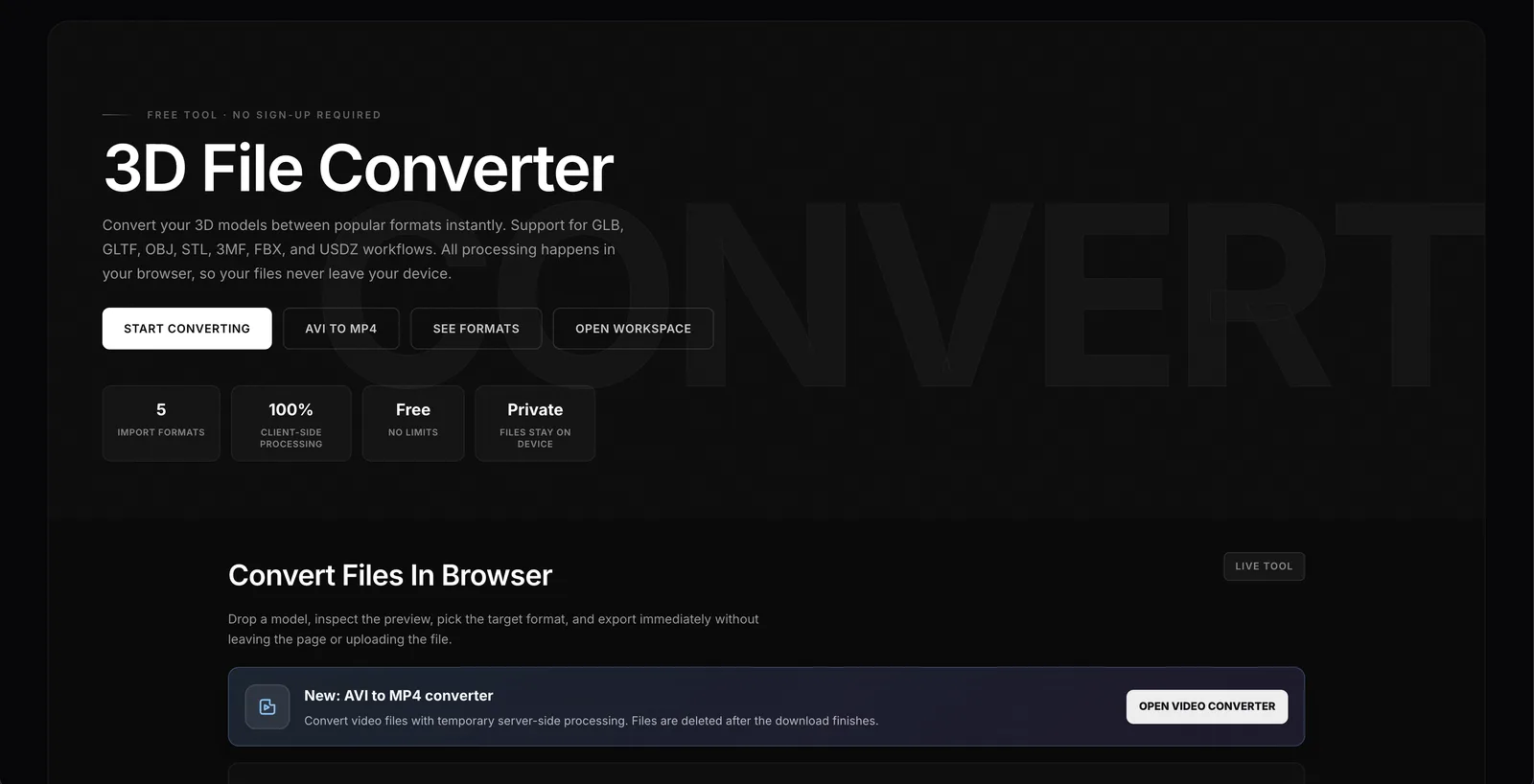

Let’s be blunt: creative workflows are a mess without the right file conversion tools. Every serious creator—whether you’re building AI-generated images, prepping videos for editing, or exporting 3D meshes for printing—runs into the same wall. One tool wants WEBP, another only eats PNGs, and your 3D printer? It won’t touch anything except watertight STLs or GLBs. The reality is, modern AI workflows demand a frictionless way to convert files in the browser, fast, without downloading clunky desktop utilities. That’s where the TimrX Converter steps in—a browser-based AI file converter purpose-built for real creative pipelines. No installs. No waiting around. Just drag, drop, and go.
Why File Conversion Matters in AI Creative Workflows
Here’s the thing about modern AI creative workflows: interoperability is everything. You might generate an image in one tool, fine-tune it in another, and use that same image as a texture for a 3D model or as a prompt for an image-to-3D generator. If your assets aren’t in the right format, the pipeline breaks down. I’ve seen entire creative teams bottlenecked by something as silly as a misaligned file extension. There’s also optimization: AI models favor certain formats for speed and fidelity—think PNG for lossless images or MP4 for efficient video generation. 3D printing? That’s a world of its own, demanding watertight meshes and printable geometry. Fast, browser-native file conversion isn’t just a nice-to-have; it’s the productivity multiplier that lets creators actually build, not babysit export dialogs.
- Moving assets between AI image or video generators with different file requirements
- Optimizing images for prompt injection or dataset curation
- Transcoding video clips for frame extraction or AI animation tools
- Converting 3D models for mesh repair, remeshing, or 3D printing compatibility
- Reducing creative friction by skipping software installs
What the TimrX Converter Does
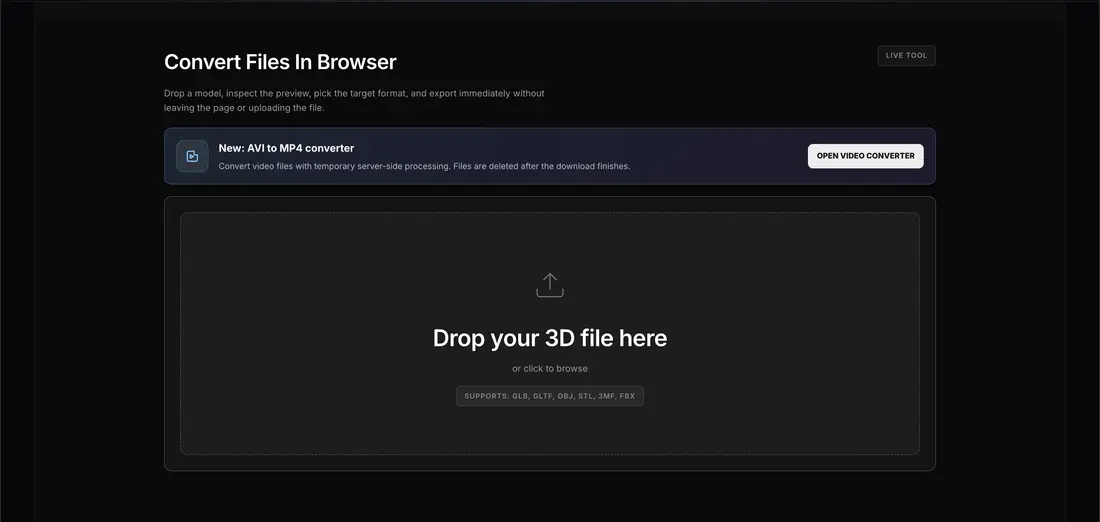
Technically, the TimrX Converter is a browser-based file converter that handles images, videos, and 3D assets—all from a single web interface. No plugins. No desktop dependencies. Just point your browser to TimrX Hub and start converting. The backend does the heavy lifting, processing files securely in the cloud, while the UI keeps things snappy for creators and developers alike.
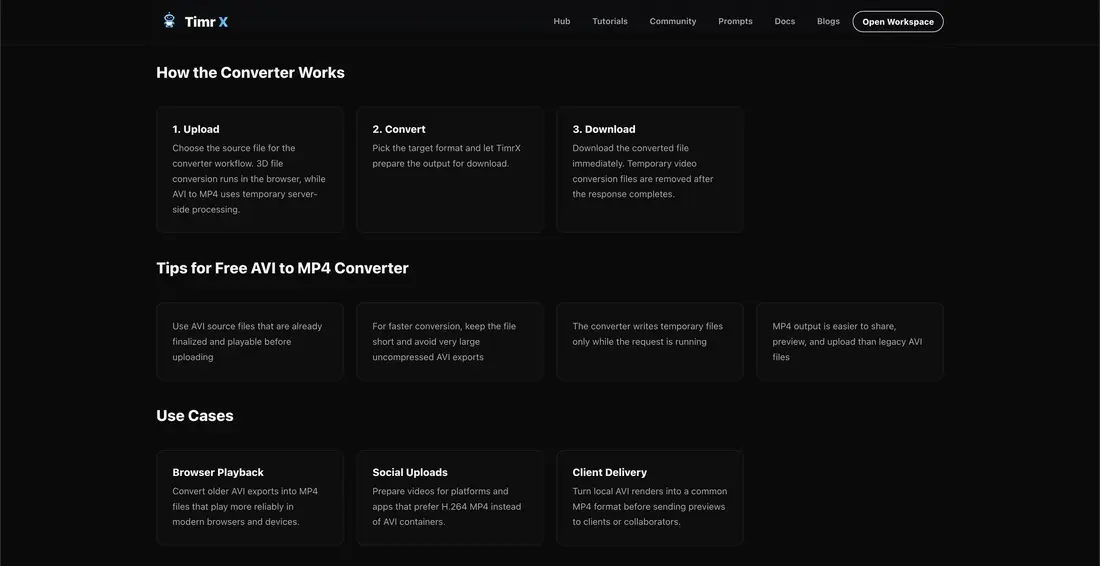
Supported file types are broad by design. You can convert image formats like PNG, JPG, WEBP, and BMP; video formats like MP4, AVI, and MOV; and 3D formats such as GLB, OBJ, STL, and FBX. The real win is speed: assets are converted in seconds, exported, and ready for the next tool in your pipeline. Need to resize, compress, or change bit depth? That’s all here. And because it’s browser-native, you can run conversions on any device—laptop, tablet, even a borrowed workstation. This is the best browser based file converter for creators who value instant, no-install workflows.
- Convert images (PNG, JPG, WEBP, BMP, TIFF, etc.)
- Convert videos (MP4, AVI, MOV, WEBM, etc.)
- Convert 3D models (GLB, OBJ, STL, FBX, PLY, etc.)
- Batch process and fast export
- No software installation—100% browser-native
- Works on any OS with a modern browser
Browser-native creative tooling is surging for a reason. It lets teams collaborate, iterate, and deploy assets without the installation or update headaches that plague desktop utilities. Changes are instant, and version mismatches are a thing of the past.
Image Conversion Workflows for AI Generation
Let’s talk about real-world image conversion. AI workflows often call for images in very specific formats and dimensions. Take prompt engineering for image generators—models like SDXL, Midjourney, or TimrX’s own AI Image Generator all benefit from clean, properly sized PNGs or JPGs. You might need to convert PNG to JPG to fit a dataset, or re-export WEBP assets from a design tool for use in a generative pipeline. Or maybe you need to bulk resize 512x512 textures for 3D workflows (trust me—this comes up way more than you’d think).
- Convert PNG to JPG for optimized dataset creation
- Convert WEBP to PNG for compatibility with AI models
- Resize and compress images for faster AI inference
- Prepare textures for 3D generation and texturing
- Export assets ready for image-to-3D workflows
Creators use these pipelines daily. For example, a concept artist exporting WEBP sketches from Figma can instantly convert them to PNG, then feed them into an AI image generator or use them as textures in a 3D scene. I’ve found that having a browser file converter ready means less time waiting, more time creating. For more on AI image preparation, see How to Write Better AI Image Prompts — Complete Guide.
Video Conversion for AI Video Generation
Video is a whole different animal. AI video generators—like Veo 3 or Seedance—often require MP4 input, ideally with specific codecs and frame rates. But creative assets might arrive as MOVs, AVIs, or even old-school WMVs from legacy archives. The TimrX Converter lets you transcode these formats instantly, right in your browser. You can also extract frames or trim clips for dataset curation, which is huge for anyone building AI-driven animations or training sequence-to-video models.
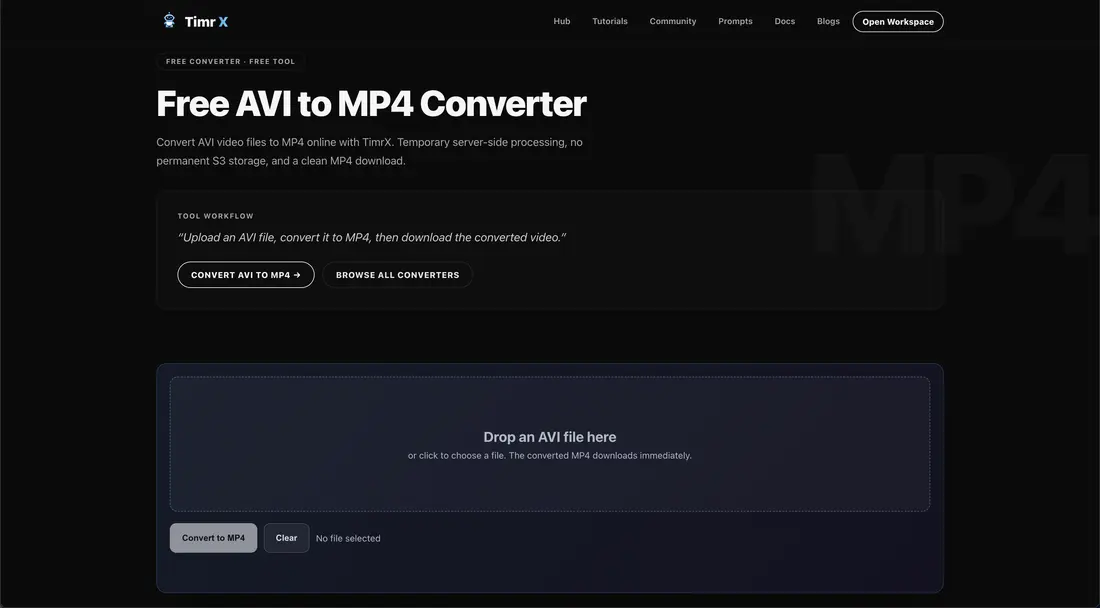
- Convert AVI to MP4 for AI video generation
- Optimize video bitrate for faster upload and processing
- Extract frames for prompt-based video generation
- Fix compatibility issues between video editing and AI tools
- Transcode legacy video assets for use in modern AI pipelines
If you’re preparing source footage for Veo 3 or Seedance, you’ll appreciate not having to juggle five different desktop converters. I’ve personally run into codec mismatches that only a fast, browser-based online file converter could solve. For more advanced pipelines, see Why AI Video Generation Is Booming in 2026: Veo 3.1, Seedance 2.0, and the New Creator Workflow.
3D Conversion Workflows
3D model conversion is a major pain point for anyone working in AI, AR/VR, or 3D printing. Most 3D tools support a handful of formats, and those formats rarely match between modeling, texturing, and printing pipelines. The TimrX Converter handles GLB, OBJ, STL, FBX, and more—letting you prep assets for AI 3D generation, mesh repair, or direct printing via TimrX 3D Print.
- Convert OBJ to GLB for real-time rendering or web deployment
- Prepare STL files for 3D printing (watertight, manifold)
- Optimize mesh density for AI or simulation workflows
- Batch convert 3D assets before using text-to-3D or image-to-3D
- Export ready-to-print models for 3D printing workflows
A typical scenario: you generate a 3D model using TimrX AI 3D Generator, but your slicer only accepts STL. With the TimrX Converter, it’s a two-click fix. For more 3D printing tips, see How to Fix AI 3D Models for 3D Printing (Complete Guide) and AI 3D Printing Models: From Text Prompt to STL File.
Why Browser-Based Creative Tools Are Replacing Desktop Utilities
Let’s not sugarcoat it: desktop utilities are fading for a reason. They’re slow to update, stuck on specific OS versions, and a pain to deploy for distributed or remote teams. Browser-based AI tools like the TimrX Converter solve this with instant access, zero install friction, and seamless cloud connectivity. You get automatic updates, cross-device support, and—critically—speed. I’ve watched teams triple their output just by moving to web-based creative tools. Cloud-native pipelines also unlock real collaboration: sharing assets, reviewing changes, and integrating with other web apps is just easier.
- No installation or update headaches
- Works on any OS and device
- Instant access to new features
- Faster onboarding for new collaborators
- Better integration with cloud-based AI tools
If you’re still using a desktop-only converter, you’re burning time and productivity. The modern creative pipeline lives in the browser.
TimrX as an AI Creative Ecosystem
The TimrX Converter isn’t just a standalone tool—it’s the connective tissue of the TimrX creative workspace. Whether you’re generating AI imagery, animating with Veo 3, building 3D models from text, or prepping for 3D printing, the converter is the glue that binds it all together. It’s directly integrated with AI Image Generator, AI Video Generator, AI 3D Generator, Text-to-3D, Image-to-3D, and 3D Print. The result: a unified, browser-first creative platform where asset prep is fast, reliable, and always available. For a deeper dive into the TimrX platform, check out What is TimrX? The AI Platform for Image, Video and 3D Generation.
- One interface for all creative asset conversions
- Direct pipeline integration with AI generation tools
- Batch process assets for large creative projects
- Centralized creative hub at TimrX Hub
TimrX is basically the control center for anyone serious about browser-based AI content pipelines.
Real Workflow Examples
Workflow 1: Convert a Generated Image into a Texture-Ready PNG for 3D Generation
Suppose you’ve just generated a concept image using the AI Image Generator. You want to use that as a texture in a 3D scene. With TimrX Converter, you upload the original (maybe a JPG), select PNG as the output, and resize it to 1024x1024 for PBR workflows. The output is ready for Image-to-3D or direct import into a 3D tool—no Photoshop or GIMP required.
Workflow 2: Prepare a Video Clip for AI Animation Workflows
Let’s say you have a 4K MOV file from your camera, but the AI video generator only takes MP4 at 1080p. Drop the MOV into TimrX Converter, set the format to MP4, choose the resolution, and the tool does the rest. The result is a clean, compatible video for frame extraction or prompt animation with AI Video Generator. For more on prompt-based video, see Text-to-Video Generation with Seedance 2.0.
Workflow 3: Optimize a 3D Asset Before Exporting for Printing
You have a GLB model from AI 3D Generator, but your printer needs STL. With TimrX Converter, upload the GLB, choose STL as the output, and run a mesh check for printability. The exported file is now ready for 3D printing without running through Blender or MeshLab. For a hands-on guide, read No-Blender 3D Modeling: Create 3D Models with AI Only.
Conclusion
The TimrX Converter is more than just an online file converter—it’s the backbone of modern creative pipelines. Browser-native creative tooling slashes friction, accelerates asset prep, and lets creators focus on building, not babysitting export dialogs. Whether you’re converting images for AI generation, prepping video for animation, or optimizing 3D assets for printing, this is the best browser file converter for creators in 2026. Want to see it in action? Explore the full suite of TimrX tools at TimrX Hub, browse the TimrX Blogs, and catch up on recent updates in the TimrX Archive.
FAQ: AI File Conversion & Creative Workflows
What is an AI file converter?
An AI file converter is a tool—like TimrX Converter—that lets you transform creative asset formats (images, videos, 3D models) for use in AI-driven pipelines, directly in your browser.
Can I convert creative assets directly in the browser?
Yes. With browser-native tools like TimrX Converter, you can convert images, videos, and 3D assets instantly online, with no software installation required.
What file formats should I use for AI image generation?
Most AI image generators work best with PNG or JPG files. For prompt-based workflows, PNG is preferred for lossless quality, while JPG is good for datasets. TimrX Converter can prepare both.
How do creators prepare assets for AI video workflows?
Creators use tools like TimrX Converter to transcode videos into MP4, optimize resolution and bitrate, and extract frames for use in AI video generators like Veo 3 or Seedance.
Can converted files be used for 3D printing workflows?
Absolutely. The TimrX Converter lets you export 3D models as STL or OBJ, optimize meshes for printability, and send them directly to 3D printing pipelines.
Sources
- [1] How To Write A Blog Post Optimized For SEO
- [2] How To Write An SEO Optimized Blog Post To Drives Traffic To Your ...
- [3] How To Write an Article in 7 Easy Steps | Indeed.com
Comments 0
Be the first to comment on this post.