
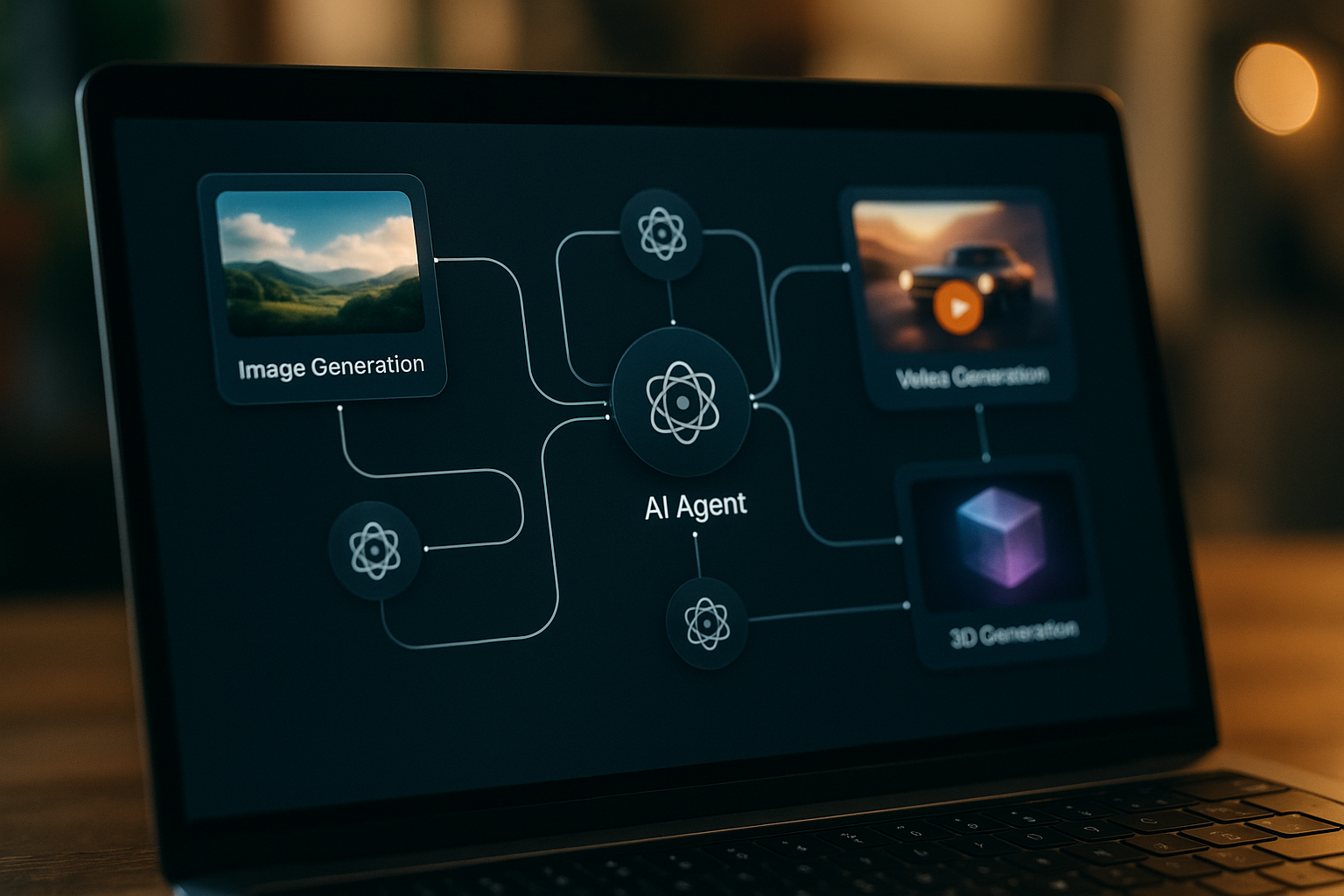

AI workflow automation tools have exploded in the last few years. If you're a creator, developer, or digital artist, you know the pain of gluing together half a dozen AI models, juggling file formats, and scripting your way through endless steps just to get to something useful. That’s where platforms like Sim AI come in. Sim AI (sim.ai platform) targets exactly this problem: giving you a visual, agent-based way to build, automate, and run powerful AI workflows—without having to write mountains of custom code. The promise? You get to focus on your creative process, not the plumbing.
What Is Sim AI?
So what is Sim AI? At its core, Sim AI is a workflow automation platform built around the idea of AI agents. Think of it as a creative sandbox where you chain together different AI modules—text, image, video, even 3D—and orchestrate them to automate complex tasks. The sim.ai platform lets you visually design workflows that move data through multiple steps: prompt engineering, model inference, asset transformation, and more. No surprise, this appeals to anyone building creative AI pipelines, especially those tired of context-switching between dozens of different tools.
Sim AI sits comfortably among modern AI simulation tools and workflow orchestration platforms. What makes it unique is its focus on creators: visual-first, modular, and with the right balance between flexibility and abstraction. If you've tried tools like RunwayML, HuggingFace Spaces, or Replicate, the sim.ai platform aims for a similar sweet spot—but with a stronger tilt toward agent-based automation and creative asset flows.
How Sim AI Works
Under the hood, Sim AI builds everything around the concept of agents and steps. Each workflow is a directed graph: inputs come in (text prompts, images, video, or 3D assets), then flow through a series of agent nodes. Each agent can perform a task—like running a Stable Diffusion image model, summarizing text, or converting video to audio. The outputs can be chained, forked, or merged, depending on your logic. The user interface is typically a visual canvas, allowing drag-and-drop construction of AI pipelines for creators. This architecture means you can go from a simple text-to-image workflow to a complex multi-modal pipeline that generates, refines, and exports assets—all with minimal manual intervention.
Prompts, agent configuration, and data routing are the heart of the system. You set up each step—define what model or logic to use, tweak its parameters, and specify how outputs flow to the next step. The platform manages the execution, parallelization, and error handling. For anyone who's spent hours debugging Python scripts with ten nested for-loops, this is a breath of fresh air.
Key Features of Sim AI
Workflow Creation
The main draw: building workflows visually. You can start simple—like chaining a GPT prompt to an image generator—or get advanced, integrating multiple agents for conditional logic, iterative refinement, or even branching paths. The visual pipeline editor is designed to be intuitive for non-coders, but powerful enough for technical users. Workflow templates and reusable components cut down on repetitive setup.
Automation Capabilities
Sim AI’s strength is AI workflow automation. You can schedule tasks, trigger workflows based on events, or set up recurring jobs. This is perfect for creators who want to automate content batches, run daily asset generation, or chain together processes like auto-captioning, video summarization, or 3D mesh generation.
Integration Potential
A good workflow tool is only as strong as what it connects to. Sim AI supports integration with popular AI models, external storage, webhooks, and creative tools. In practice, this means you can pipe data in from cloud storage, run it through open-source or hosted models, then push results out to platforms like TimrX, Figma, or your own webhooks. More advanced users can extend Sim AI with custom agents or connect to REST APIs.
Use Cases for Creators
- Batch-generating marketing images or product renders
- Automating YouTube short creation with AI voiceover and video summarization
- Running text-to-3D asset pipelines for game design
- Generating, filtering, and exporting creative assets for websites or print
How to Use Sim AI (Step-by-Step Tutorial)
Step 1 – Setting Up Sim AI
First, head to sim.ai and sign up for an account. Once inside, you’ll land in the dashboard. Here, you can browse workflow templates, start a new project, or import existing pipelines. For most creators, starting from a template (say, ‘Text-to-Image Pipeline’) is the fastest way to experiment.
Step 2 – Creating Your First Workflow
Click ‘New Workflow’ and give your project a name. You’ll enter the visual editor—a blank canvas. Drag in an ‘Input’ node (text, image, video, etc.), then start connecting agent nodes from the sidebar. For example, you might drop in a GPT prompt agent, link it to an image generator (like Stable Diffusion), and finally add an ‘Output’ node for export.
Step 3 – Adding AI Logic / Prompts
Double-click any agent node to open its configuration. Here, you’ll set your prompt text, tweak model parameters, or define rules for branching logic. For example: in a GPT node, write a prompt like “Generate a product description for a minimalist water bottle.” In the image node, specify your style or model checkpoint. You can chain outputs—have the GPT node feed directly into the image generator’s prompt field.
Step 4 – Running and Testing the Workflow
With your workflow set up, hit ‘Run’. Watch the data flow through each agent in real time. Sim AI will flag any errors or missing configs. You can inspect outputs at each stage, tweak prompts, and re-run as needed. For more advanced workflows, add logging or conditional logic to handle edge cases.
Step 5 – Exporting or Using Results
Once your workflow finishes, export results in your preferred format—images, video, 3D assets, or text. You can connect output nodes to cloud storage, webhooks, or directly to platforms like TimrX Hub for further processing. This export step is crucial for integrating Sim AI into your larger creative pipeline.
Real Use Cases for Creators
Let’s get concrete. Here are real-world ways creators use Sim AI:
- Writers and marketers automate blog post generation, using GPT agents to draft, another agent for SEO optimization, and an image model for header graphics.
- Video editors set up pipelines that transcribe audio, summarize segments, and generate short-form clips for TikTok or Instagram—no manual chopping needed.
- 3D artists link Sim AI with text-to-3D tools: design prompt → GPT agent for asset concept → 3D model generator → export to TimrX 3D Print module.
- Web designers automate illustrational asset creation, batch-processing a spreadsheet of topics into unique branded images.
For more on creative pipelines, check out our article AI Creative Workflows: Combining Image, Video, and 3D Generation.
How Sim AI Fits into AI Creative Pipelines
Sim AI isn’t an island. It thrives when paired with other AI generation platforms. For example, you can use Sim AI to automate the initial idea, prompt generation, or asset transformation, then plug the results into specialized generators:
- Image pipeline: Sim AI prompt engineering → TimrX AI Image Generator for photorealistic assets.
- Video pipeline: Script and scene breakdown in Sim AI → export to tools like Veo or Seedance for video synthesis. (See our article Text-to-Video Generation with Seedance 2.0.)
- 3D pipeline: Sim AI generates asset concepts or text prompts → handoff to TimrX AI 3D Generator or Text-to-3D workflows.
If you want to see a full walkthrough, our article From AI Image to 3D Model: Inside the TimrX Creative Pipeline breaks down multi-stage workflows step by step.
Using Sim AI with TimrX Workflows
Here’s where the magic happens. Combine Sim AI’s workflow builder with TimrX’s browser-based creative tools for end-to-end automation. For example, you can:
- Use Sim AI to script and generate prompts for image or 3D generation, then send outputs directly to TimrX Hub.
- Batch-process Sim AI outputs in TimrX AI Image Generator (for illustrations, product shots, concept art).
- Export 3D models from Sim AI to TimrX 3D Print workflows for rapid prototyping or digital fabrication.
- Archive and track all generated assets in your TimrX archive for future reuse or remixing.
If you’re building a full creative pipeline—say, from idea to image to animated video to 3D printable object—combining Sim AI’s logic with TimrX’s specialized generators is the best approach I’ve found for speed and reproducibility. For more depth, see What is TimrX? The AI Platform for Image, Video and 3D Generation.
Limitations of Sim AI
Look, no tool is perfect. Sim AI’s visual-first approach means there’s a learning curve, especially if you’re coming from pure code. Some advanced features (custom agents, API integrations) may require technical knowledge. There are also constraints on which models or plugins are available out of the box, compared to scripting everything yourself. If you need ultra-custom automation or bleeding-edge research models, you might occasionally fall back to code or direct API calls. But for 80% of creative automation tasks, Sim AI hits the sweet spot between power and usability.
Conclusion
Sim AI (sim.ai platform) is a solid contender if you care about automating creative AI pipelines without drowning in code. It nails the basics of workflow automation, agent orchestration, and integration with creative tools. Pairing Sim AI with TimrX’s image, video, and 3D modules unlocks end-to-end pipelines that actually work for real creators. As AI workflow automation becomes the norm, tools like Sim AI will shape how we build, iterate, and launch creative projects—faster and with fewer headaches.
FAQ Section
- What is Sim AI used for?
Sim AI is used for building and automating AI workflows, especially for creative tasks like generating images, video, text, and 3D assets. - Is Sim AI good for beginners?
Yes. The visual editor is beginner-friendly, though some advanced features benefit from technical knowledge. - Can Sim AI automate content creation?
Absolutely. You can automate blog posts, social media images, video clips, and more using workflow pipelines. - How does Sim AI compare to other AI workflow tools?
Sim AI focuses on visual, agent-based workflows and creative asset generation. It’s less code-heavy than some developer tools, more flexible than most no-code platforms. - Can Sim AI be used with 3D or video tools?
Yes. Sim AI can generate prompts and automate asset flows for 3D and video pipelines, especially when paired with tools like TimrX.
Sources
- [1] SEO Writing: 16 Tips to Create Optimized Content - Semrush
- [2] How I Structure and Write SEO Optimized Articles in 2024


Comments 0
Be the first to comment on this post.