
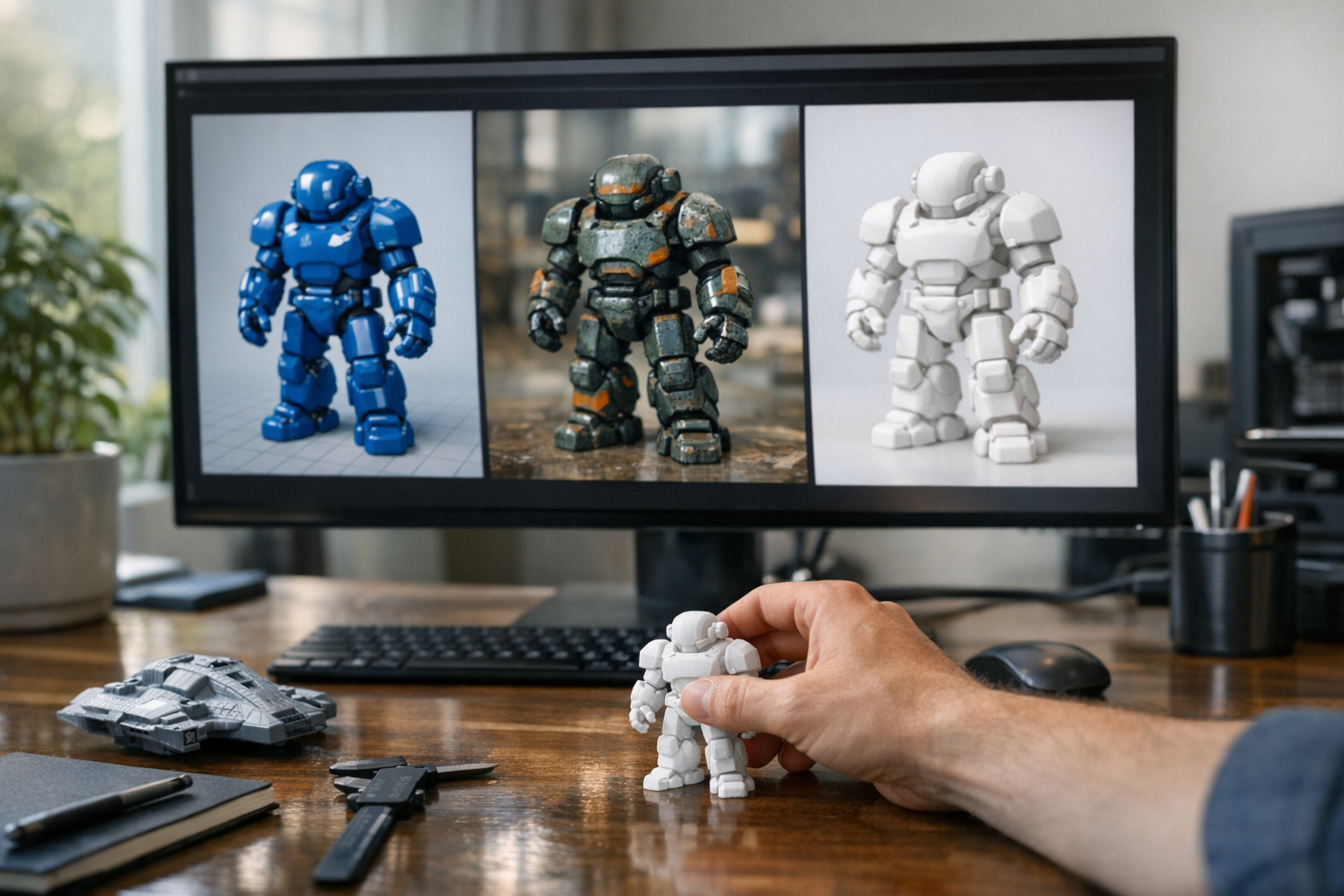

Let’s get this straight: your choice of 3D file format will absolutely make or break your workflow. I’ve watched creators waste hours—sometimes days—trying to fix conversion issues that could’ve been avoided by picking the right format at the start. Whether you’re building browser previews, exporting assets for a game engine, prepping a model for 3D printing, or assembling product visuals, the format you choose sets the tone for everything that follows. GLB, GLTF, and STL aren’t just buzzwords. They’re the backbone of modern pipelines for visualization, game development, animation, and manufacturing. Use the wrong one, and you’ll be fighting broken textures, missing animations, or unprintable geometry. Get it right, and you’re one export away from a smooth, browser-based workflow (especially if you’re using tools like TimrX Hub or TimrX 3D Print). So what’s the actual difference between GLB, GLTF, and STL—and which is the best 3D file format for your project?
What Is a 3D File Format?
At its core, a 3D file format is just a digital container for the stuff that makes up a model: geometry (the vertices, edges, and faces of your mesh), materials (how those surfaces look), textures (the images wrapped around them), and sometimes metadata (units, authorship, scene info). Some formats, like STL, are bare-bones—just raw mesh data. Others, like GLB and GLTF, pack in textures, animations, and more. Why do so many exist? Because each use case—real-time rendering, 3D printing, AR/VR, or manufacturing—demands different features. You wouldn’t use a hammer to cut wood, and you shouldn’t use STL for browser visualization. The right file format maps to your workflow, your software, and your end goal. That’s why understanding the differences isn’t optional—it’s essential.
Understanding GLB
GLB is the binary sibling to GLTF, and in my experience, it’s the best all-in-one format for moving complex 3D assets between browser-based tools, game engines, and AR/VR platforms. The key? Everything—geometry, textures, materials, animations—is packed into a single, portable file. No linked assets to lose. Modern browsers and tools love it. GLB is natively supported in WebGL viewers, including the TimrX browser 3D viewer, so you can preview models instantly, without plugins. It’s also compact—binary packing means fast downloads and uploads. Need to share an asset with a teammate or client? Just send the GLB. For creators working in online 3D workflows, GLB is often the best 3D file format for real-time previews and seamless exports. GLB is also the recommended format for WordPress and browser-native 3D apps, due to its simplicity and self-containment [1][2].

Understanding GLTF
GLTF (GL Transmission Format) is the open, JSON-based format designed for maximum flexibility and readability. Unlike GLB, GLTF stores its data in a text-based structure—with references to external binary files for geometry, images for textures, and separate files for animations if needed. This makes GLTF incredibly modular and easy to edit by hand or script. If you’re building a pipeline where assets are generated, processed, or tweaked dynamically (imagine an online 3D configurator or a game engine asset import tool), GLTF is a solid choice. It’s also ideal if you want to keep textures or animations separate for version control or incremental updates—modifying a single asset doesn’t require repacking the whole file. The tradeoff: you need to manage multiple files, which can be a headache in a complex project or when moving assets between environments. But for developers and technical artists, the flexibility is worth it. GLTF is fully supported in browser-based editors and viewers, making it a staple for online 3D workflows [2].
Understanding STL
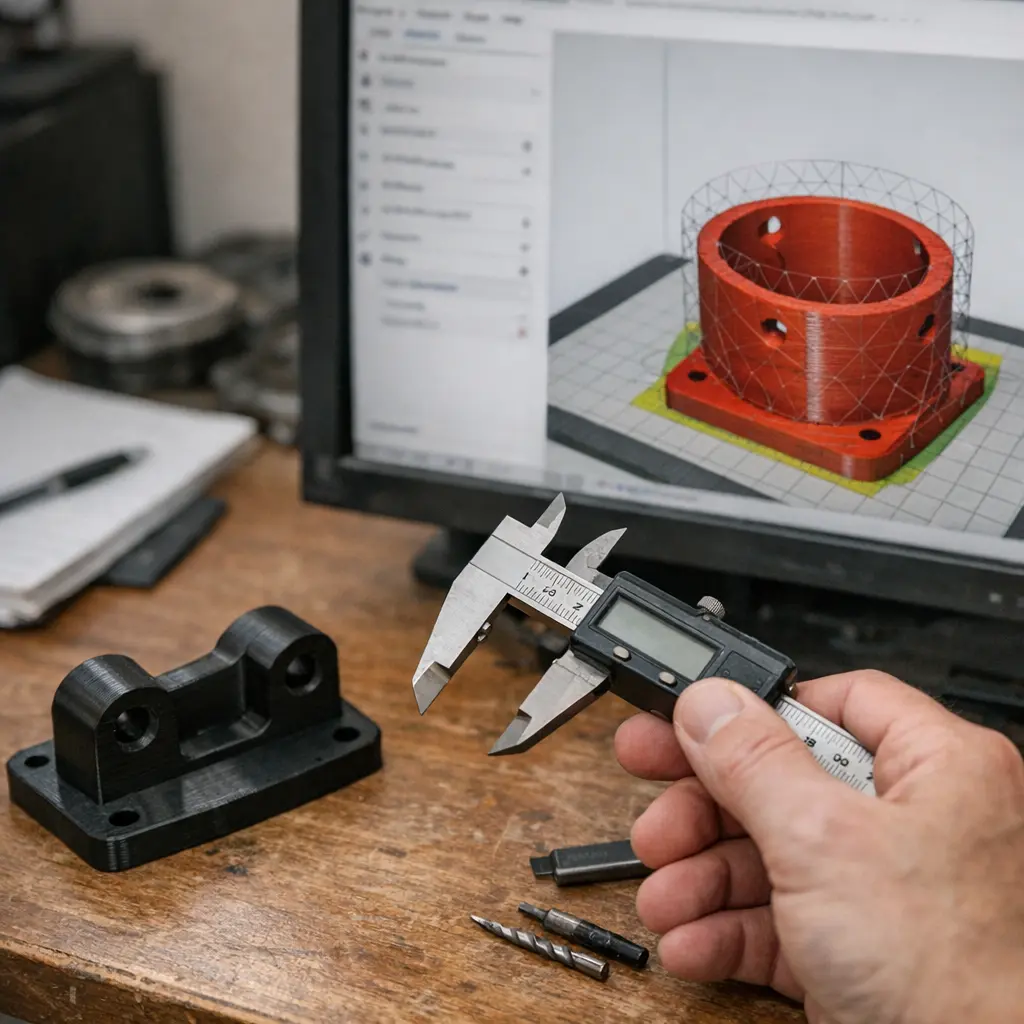
STL is the original workhorse of 3D printing and manufacturing. Here’s what you get: pure triangle mesh geometry, no textures, no colors, no materials, no scene hierarchy. That’s by design. STL was built for one thing—defining the shape of a part for fabrication. It’s simple, universally supported by slicing software, and easy to generate from almost any modeling tool. If you’re prepping a model for 3D printing, especially with tools like TimrX 3D Print Model Generator or using browser-based mesh repair and slicing, STL is still the standard. But don’t expect anything fancy: no UVs, no PBR materials, no animations. It’s for manufacturing, not visualization. And that’s why STL remains important, even as new formats emerge [3].
Comparing GLB, GLTF and STL
Let’s strip it down to the essentials. Here’s a practical comparison you can actually use:
- Textures: GLB (embedded), GLTF (external), STL (none)
- Materials: GLB/GLTF (full PBR), STL (none)
- Animations: GLB/GLTF (supported), STL (none)
- File Size: GLB (compact), GLTF (modular), STL (smallest for geometry only)
- Browser Compatibility: GLB/GLTF (excellent), STL (limited for visualization)
- Editing: GLTF (easy by hand), GLB (harder), STL (geometry only)
- Printing: STL (best), GLB/GLTF (requires conversion)
- Game Development: GLB/GLTF (native), STL (not suitable)
- Web Visualization: GLB (best), GLTF (good), STL (not recommended)
If you want the full breakdown—including how these formats compare to OBJ—check out GLB vs STL vs OBJ: Which 3D File Format Should You Use for Your Workflow?.
Which Format Should You Use?
Here’s the thing: there’s no single winner. The best 3D file format depends on what you’re doing and where your asset will end up.
- Product Designers: Use GLB for browser previews and AR demos, STL for 3D printing.
- Game Developers: GLB is best for streamlined asset import; GLTF if you want modular editing.
- 3D Printing Enthusiasts: STL is still king for print-ready geometry.
- Digital Artists: GLB for sharing textured models online, GLTF for collaborative edits.
- Browser Applications: GLB wins for fast, one-file exports and instant previews in online viewers.
- Rapid Prototyping: STL for print, GLB for visual feedback before manufacturing.
If you’re working in a browser-based pipeline—like with TimrX Hub or TimrX AI 3D Generator—GLB is almost always the right choice for visualization. But don’t skip STL for the actual print job.
Browser-Based Creator Workflows
Modern creators don’t want to wrestle with desktop installs or file wrangling. Browser-based 3D workflows—like those you’ll find in TimrX Hub and TimrX 3D Print—let you preview, edit, generate, and export 3D assets directly from your browser. Here’s what this means in practice:
- Instant browser previews of GLB and GLTF assets, with full material and animation support.
- One-click export to GLB for sharing or further editing.
- Direct conversion from browser-native asset generators (Image to 3D, Text to 3D) into printable STL or shareable GLB.
- No need to install Blender or proprietary slicers to prep your mesh for printing—use 3D Print Model Generator in the cloud.
- Fast iteration: make a change, see it live in the browser, export the right format, repeat.
This isn’t just convenience—it’s speed, collaboration, and compatibility rolled into one. For more on building a seamless browser-native workflow, see From Concept Art to 3D Model: A Complete Browser-Based Workflow and Unified Creator Workflows: Building Images, Videos, and 3D Assets in the Browser.
Common Export Mistakes
You can have the best mesh in the world, but if your export is off, you’re sunk. Here’s what I see most often:
- Wrong scale: Model imported at 100x or 0.01x size, because units weren’t set.
- Missing textures: GLTF exported without copying image files, or GLB with missing embeds.
- Unsupported formats: Trying to upload STL to a browser viewer expecting GLB.
- Geometry issues: Non-manifold edges, holes, or flipped normals—deadly for 3D printing.
- Exporting for the wrong workflow: Sending a GLB to a slicer, or an STL to a game engine.
If you want a practical guide to prepping AI-generated models for print, check How to Fix AI 3D Models for 3D Printing (Complete Guide).
The Future of 3D Asset Formats
Here’s where things are going: browser-native, real-time, and collaborative. GLB is leading the charge as a portable, all-in-one WebGL model format for online 3D workflows. GLTF’s modularity makes it a favorite for pipelines that need flexibility. But what’s really changing is how creators interact with their assets. Real-time previews, instant mesh exports, and integrated print workflows are now possible right in the browser. Tools like TimrX Hub and TimrX 3D Print are making it easier than ever to move from concept to file to finished print—without ever leaving your browser tab. Expect more real-time collaboration, asset sharing, and seamless geometry export as these formats and tools mature.
Conclusion
So, GLB vs GLTF vs STL: what’s the verdict? Use GLB when you want a single-file, browser-ready model for visualization, sharing, or game development. Go with GLTF if you need modular editing, separate asset management, or developer control. Stick to STL for anything headed to the 3D printer—nothing beats its compatibility for mesh export and slicing. Understanding these formats isn’t just academic—it’s the difference between a smooth online 3D workflow and a file format nightmare. If you want to see these workflows in action, explore TimrX Hub, 3D Print, or browse more technical guides in the blogs and archive sections. Mastering the best 3D file format for your project is the fastest way to boost your creator pipeline.
FAQ
What is the difference between GLB and GLTF?
GLB is a binary, all-in-one version of GLTF—everything is contained in a single file. GLTF uses JSON with external references for geometry, textures, and animations. GLB is better for sharing, GLTF for modular editing.
Is STL better than GLB for 3D printing?
Yes, STL is the standard for 3D printing. GLB must be converted to STL before slicing for print.
Can GLB files be edited?
GLB files can be edited, but the process is less flexible than GLTF—usually requiring specialized tools or conversion to GLTF first.
Which format is best for game engines?
GLB is the best for fast import and portability. GLTF is also widely supported if you need modular assets.
Which format should beginners use?
For visualization and sharing: GLB. For 3D printing: STL. For editing or development: GLTF.
Sources
- [1] GLB vs GLTF: Choosing The Right 3D File Format for WordPress
- [2] 3D Model File Formats: Types, Extensions, Use Cases [& More] - Blog
- [3] STL vs. OBJ vs. GLB vs. OpenSCAD: Choosing the Right 3D File ...
Comments 0
Be the first to comment on this post.