
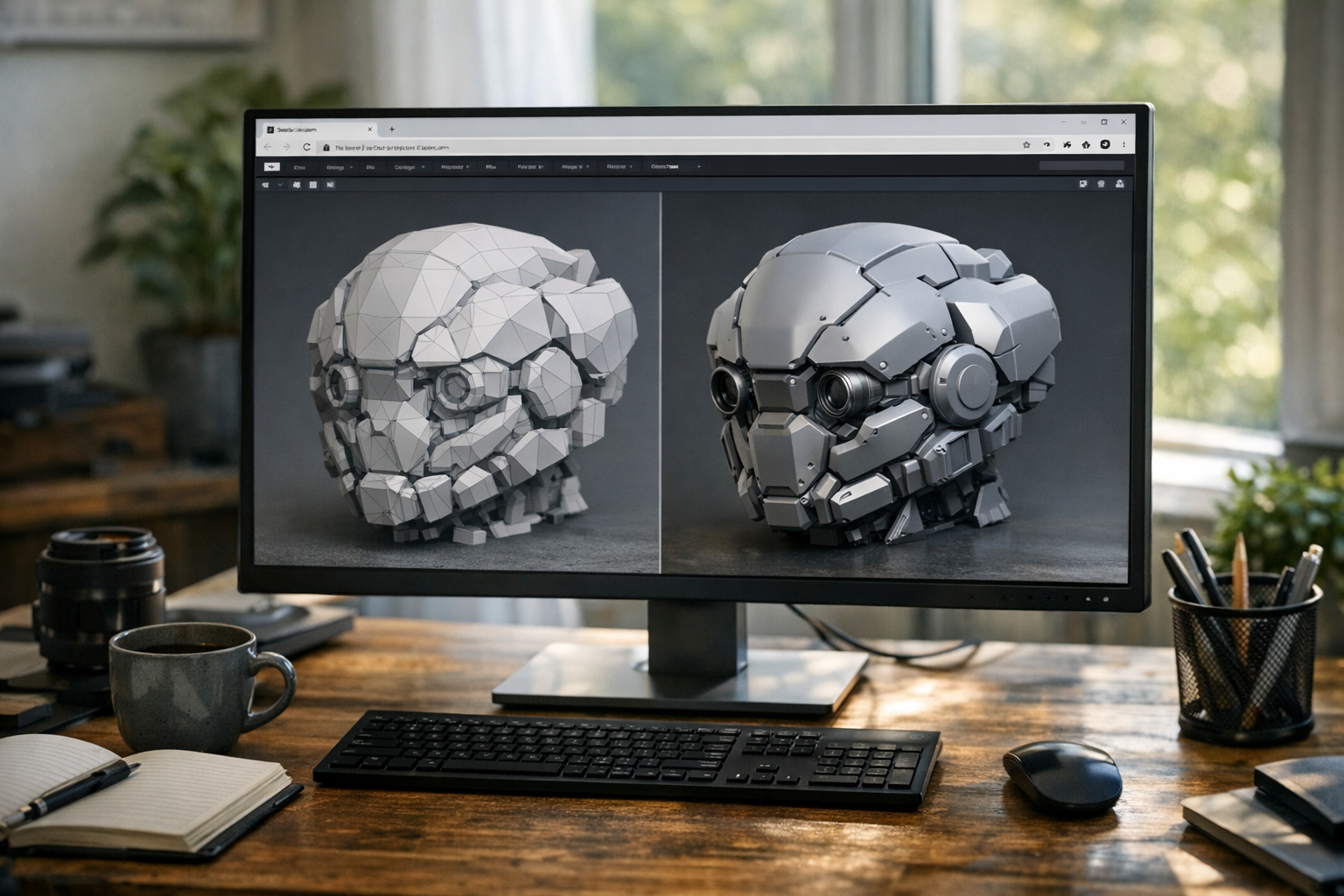

Generating a 3D model with AI is a bit like snapping a photo with your phone: it’s quick, satisfying, and sometimes even surprisingly good. But if you’ve ever tried to prepare AI-generated 3D models for production-ready uses—like 3D printing, games, product visualization, or manufacturing—you know that generation is just the start. The real work begins when you prepare the 3D model for production. Most generated meshes are missing critical details or contain structural issues that make them unusable out of the box. That’s not a failing of the technology—it’s a reflection of what real production workflows demand. I’ll walk through what actually makes a model ready for production, why AI-generated models often fall short, and how browser-based 3D workflow tools (like TimrX’s /hub, /3dprint, /ai-3d-generator) are changing the way creators refine their assets.
What Makes a Model “Production Ready”?
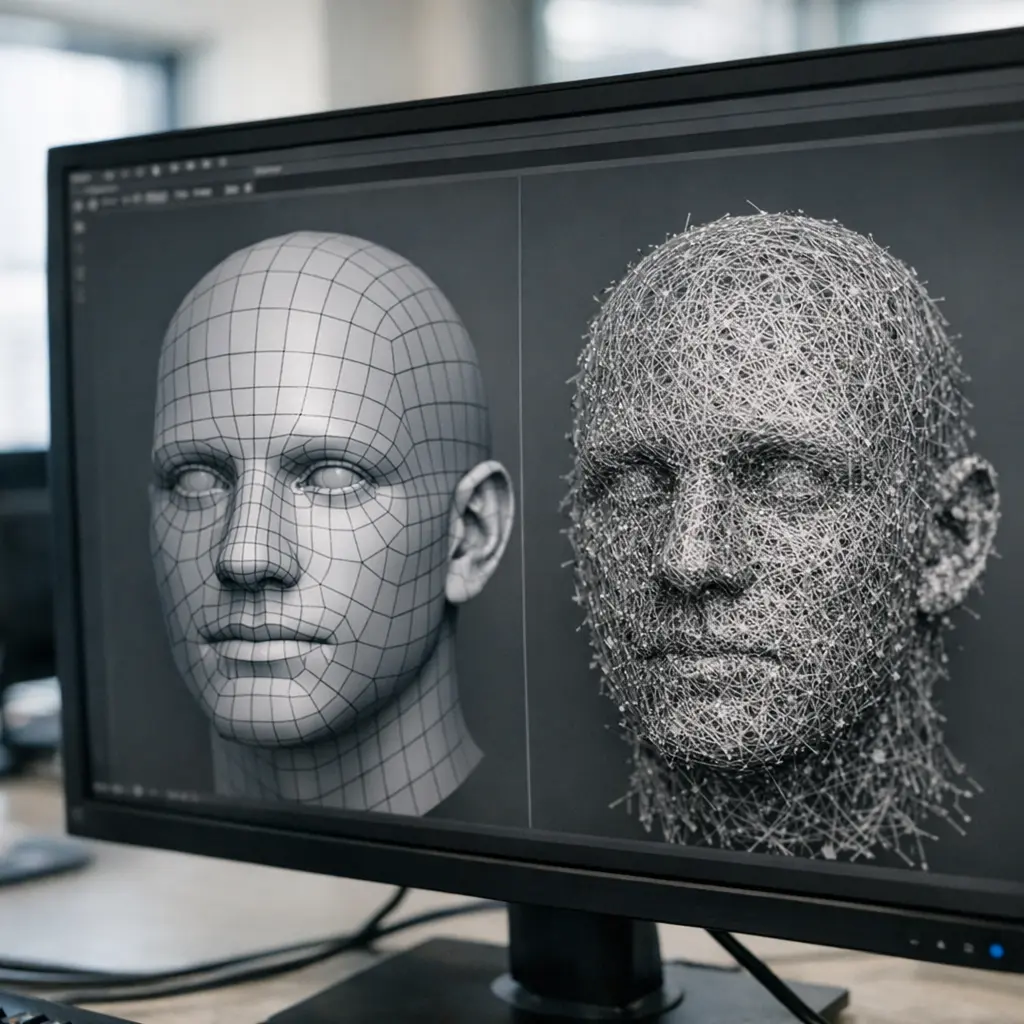
Let’s get concrete. A production-ready 3D model isn’t defined by how cool it looks in a preview window. It’s about structural integrity, consistency, and compatibility with downstream tools. Here’s what I check before calling any model ready for production:
- Topology: Clean, logical polygon flow—no random triangles or messy geometry.
- Mesh Quality: No holes, duplicate vertices, or floating faces.
- Geometry Consistency: Surfaces should be connected; no disconnected shells or non-manifold edges.
- Scale: Model matches real-world units and fits the intended scene or build volume.
- Normals: All face normals point the correct way—crucial for rendering and printing.
- Wall Thickness: For printable 3D models, walls must meet minimum thickness requirements.
- Export Compatibility: Model must export cleanly to GLB, STL, or other formats as required by the pipeline.
If you skip these, you’re asking for trouble. You’ll see failed prints, broken animations, or endless import errors. Production-ready 3D models aren’t just about looks—they’re about reliability and efficiency.
Common Problems in Generated Models
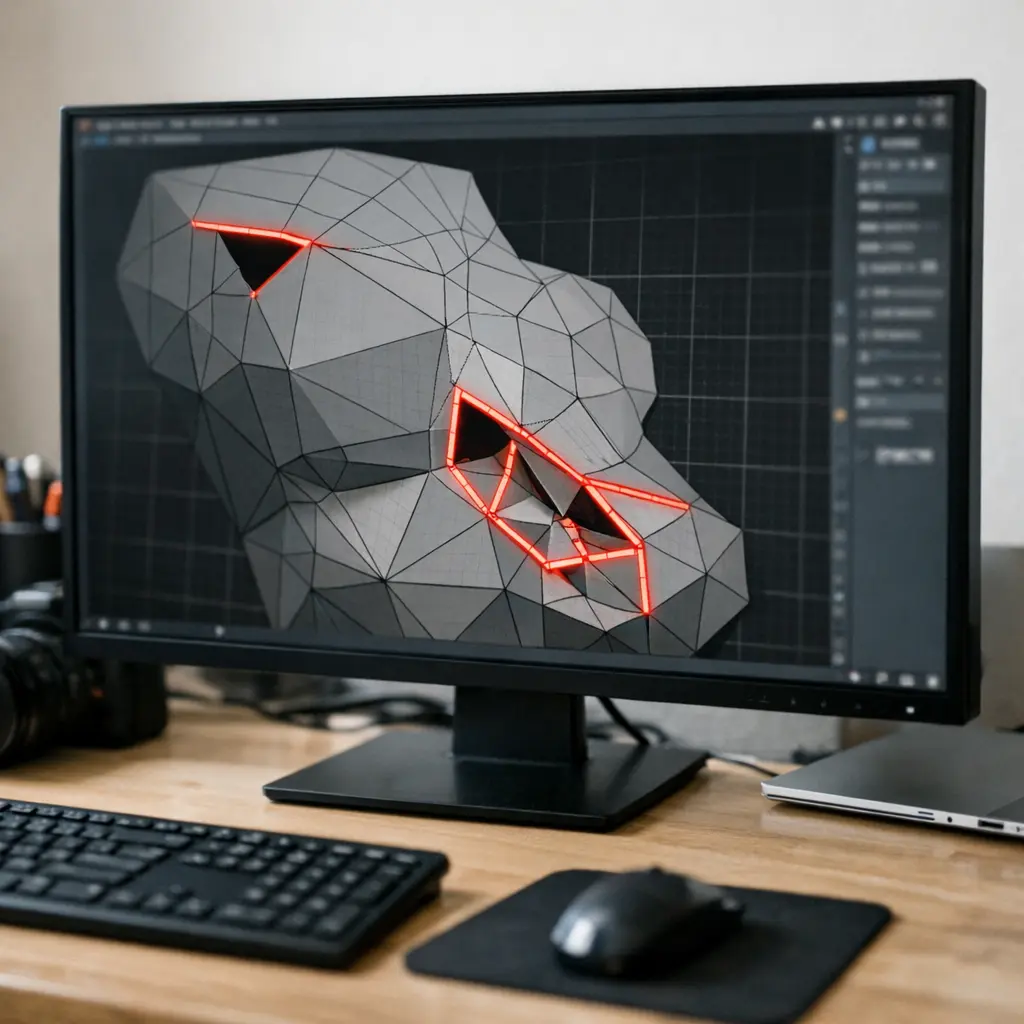
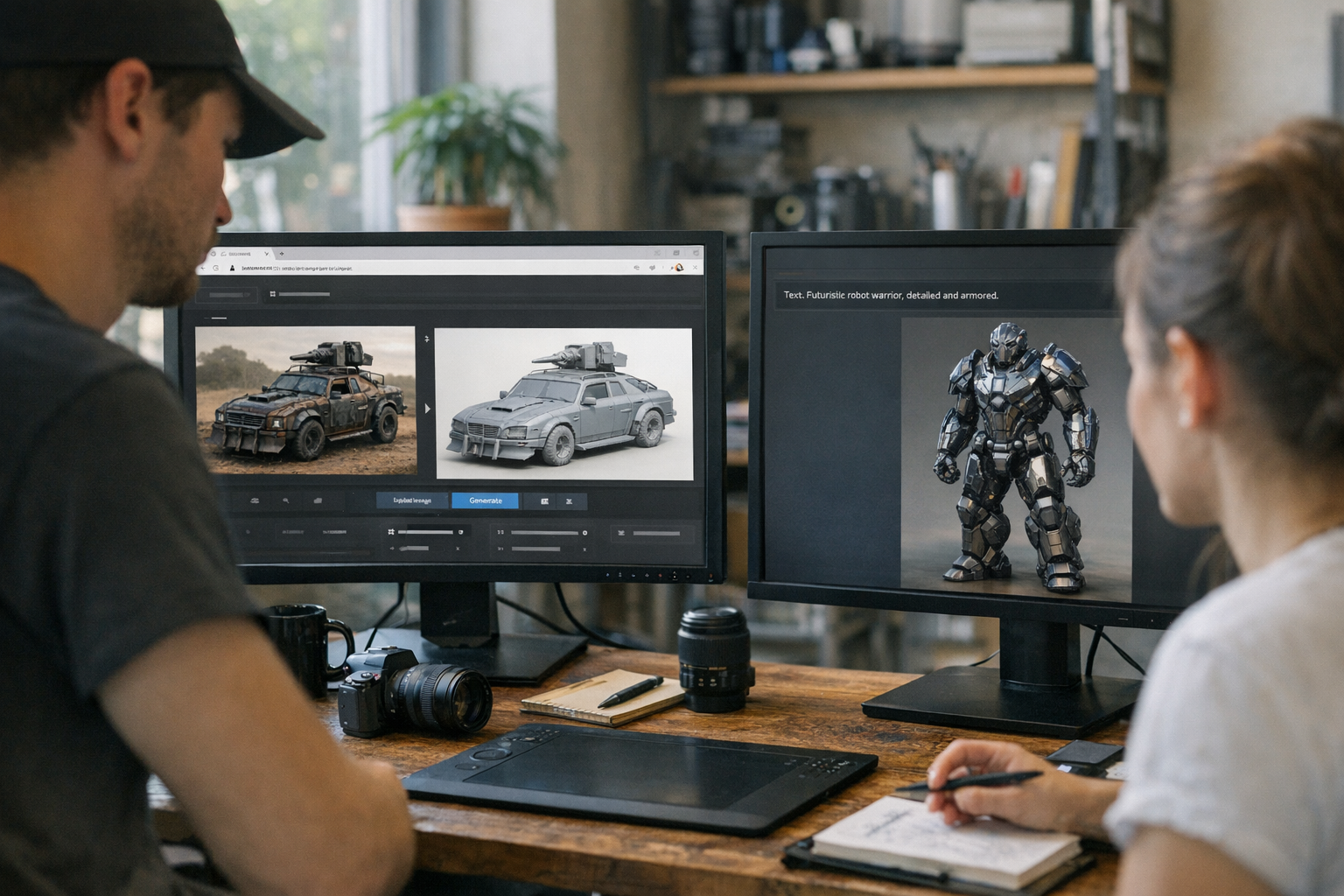
Here’s the thing: most AI-generated 3D models, especially from text-to-3D or image-to-3D workflows, are made for visual plausibility, not structural soundness. You get a recognizable shape, but what’s under the hood is often a mess. According to users and experts, most models have one or more of the following issues [1][3]:
- Noisy Geometry: Excess, random polygons make meshes hard to animate or print.
- Disconnected Surfaces: Floating shells or parts that don’t actually join.
- Non-Manifold Meshes: Edges shared by more than two faces, or other impossible-to-print geometries.
- Thin Walls: Surfaces too thin for 3D printing, leading to structural weakness.
- Missing Details: Important features omitted or merged due to generation limits.
- Overlapping Geometry: Surfaces occupying the same space, causing rendering or slicing errors.
- Inconsistent Scale: Model is too big, too small, or not aligned to real-world units.
Why do these matter? Non-manifold geometry, for instance, can make a model unprintable or break physics in a game engine. Thin walls might look fine in a browser preview, but will fail on the printer. Overlapping faces can cause all sorts of shading or slicing artifacts. If you’re serious about using AI-generated 3D models in production, you need to fix these problems before moving forward.
Refining Models in Browser-Based Workflows
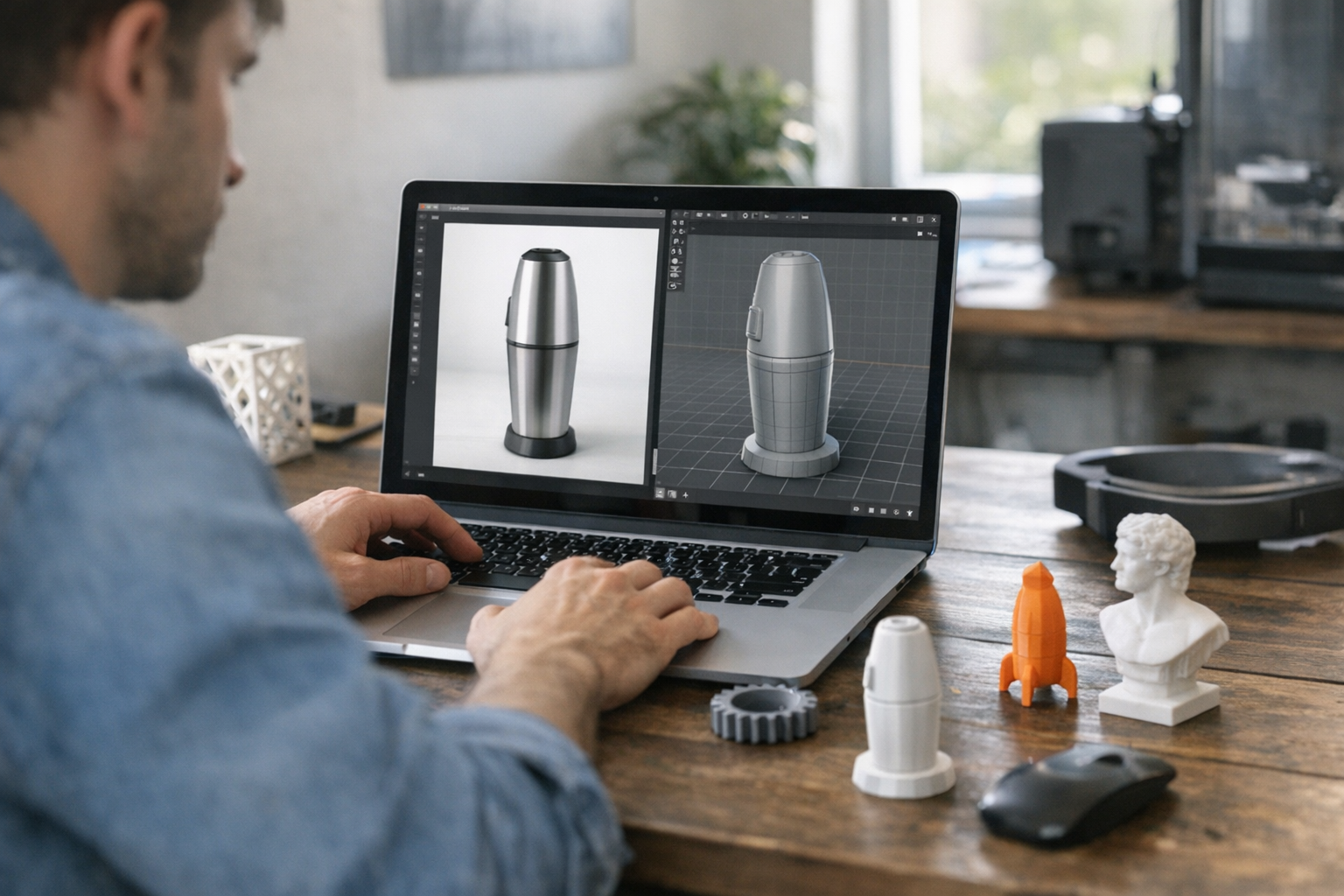
Now, this is where browser-based 3D workflow tools like /3dprint come into play. In the past, I’d spend hours in Blender or MeshLab cleaning up AI meshes, running scripts, and re-exporting files. But with browser-native creator workflows, you can preview, remesh, and refine your asset—all without leaving your browser.
- Browser Preview: Instantly inspect mesh structure, normals, and wall thickness before download.
- Remeshing: Automatically or manually rebuild topology for clean, animation- or print-ready geometry.
- Geometry Refinement: Smooth noisy areas, fill holes, and connect surfaces directly in the browser.
- Iterative Workflow: Quickly tweak, preview, and validate fixes—no huge file downloads or local installs.
- Export Options: Send your refined, production-ready 3D models straight to GLB, STL, or OBJ for further use.
You don’t need a workstation or expensive software. Anyone with a laptop and a browser can run through mesh cleanup, remesh a 3D model, or check print-readiness. The /3dprint workspace even lets you simulate slicing and check for potential print failures before you ever hit export. That’s a huge step forward for creators who want to move fast and iterate often. For a full workflow breakdown, take a look at this guide on print-ready browser workflows.
Preparing Models for Different Use Cases
‘Production ready’ means different things depending on where your model’s headed. Here’s what I’m watching for in the most common use cases:
Game Assets
For games, you want optimized, low-poly meshes with UV-unwrapped textures and efficient topology. Non-manifold edges are a dealbreaker for animation. Vertex count and clean edge flow are more important than absolute detail.
Product Visualization
Here, visual fidelity is king. You’ll want high-quality, smooth surfaces, correct scale, and accurate materials. Overlapping geometry or inverted normals can cause major render artifacts.
Digital Rendering
Models for renders must have clean shading and texture mapping, but polygon count is less of a constraint compared to games. Any mesh errors will show up under dramatic lighting, so extra refinement is needed.
3D Printing
This is where most AI-generated 3D models fail out of the box [1]. For printable 3D models, you need watertight geometry, correct wall thickness (usually above 0.8mm for FDM), no non-manifold edges, and a model that slices cleanly. If you skip mesh cleanup, you’re gambling with your filament (and your time). For deeper detail, see this step-by-step guide on fixing AI models for printing.
Prototyping
Fast iteration is the priority. Models don’t have to be perfect, but you do need correct scale and basic printability. Quick browser-based refinement lets you test ideas without getting bogged down.
Choosing the Right Export Format
Let’s talk about file formats. Exporting your model in the wrong format can break your workflow or ruin all your careful mesh cleanup. Here’s a quick rundown:
- GLB: Binary version of GLTF, compact and widely supported for browser preview, games, and AR.
- GLTF: Text-based standard for 3D scenes and models; great for interoperability, but larger than GLB.
- STL: The go-to for 3D printing. Stores only geometry (no color or textures), but almost universally supported by slicers.
For game-ready assets and interactive web previews, I prefer GLB—exports are smaller, and you get texture/material support. For 3D printing, STL is the standard. Still not sure? Check out this deep dive on choosing the best 3D format.
Common Mistakes Creators Make
I’ve made all of these at one point—sometimes more than once. Here are the pitfalls I see most often when creators try to prepare 3D models for production:
- Exporting too early: Saving out before checking for mesh errors or cleaning geometry.
- Ignoring mesh quality: Focusing on visuals, not structure—leading to failed prints or broken animations.
- Printing without checking geometry: Skipping browser preview or slicing simulation.
- Forgetting scale: Model is beautiful, but 10x too large or too small for intended use.
- Using the wrong format: Sending a GLB to a slicer, or an STL to a game engine.
My advice? Always preview your model in-browser, run mesh checks, and export in the right file format for your use case. And never, ever skip geometry refinement. For more practical tips, see this workflow comparison.
Modern Browser-Based Production Pipelines
Here’s what’s changed in the last couple years: browser-based 3D workflows aren’t just for generation anymore. You can now do mesh cleanup, geometry optimization, and even preview slicing or UV mapping—in-browser, in real time. This isn’t about replacing Blender or ZBrush for everything, but for the majority of creator asset pipelines, browser-native editing offers:
- Integrated workflow: Go from AI generation to mesh cleanup to print or export, all in one place.
- Fast iteration: Small fixes take seconds, not minutes. No need to constantly re-import assets.
- Accessible tools: No downloads, no installs. Works on any device, anywhere.
- Creator productivity: Less time fighting with file formats, more time building, testing, and iterating.
If you haven’t tried a full browser-based 3D pipeline lately, it’s worth a look. You can get started with /hub for asset management, /image-to-3d or /text-to-3d for generation, and /3dprint or /3d-print-model-generator for refinement and preparation.
Looking Ahead
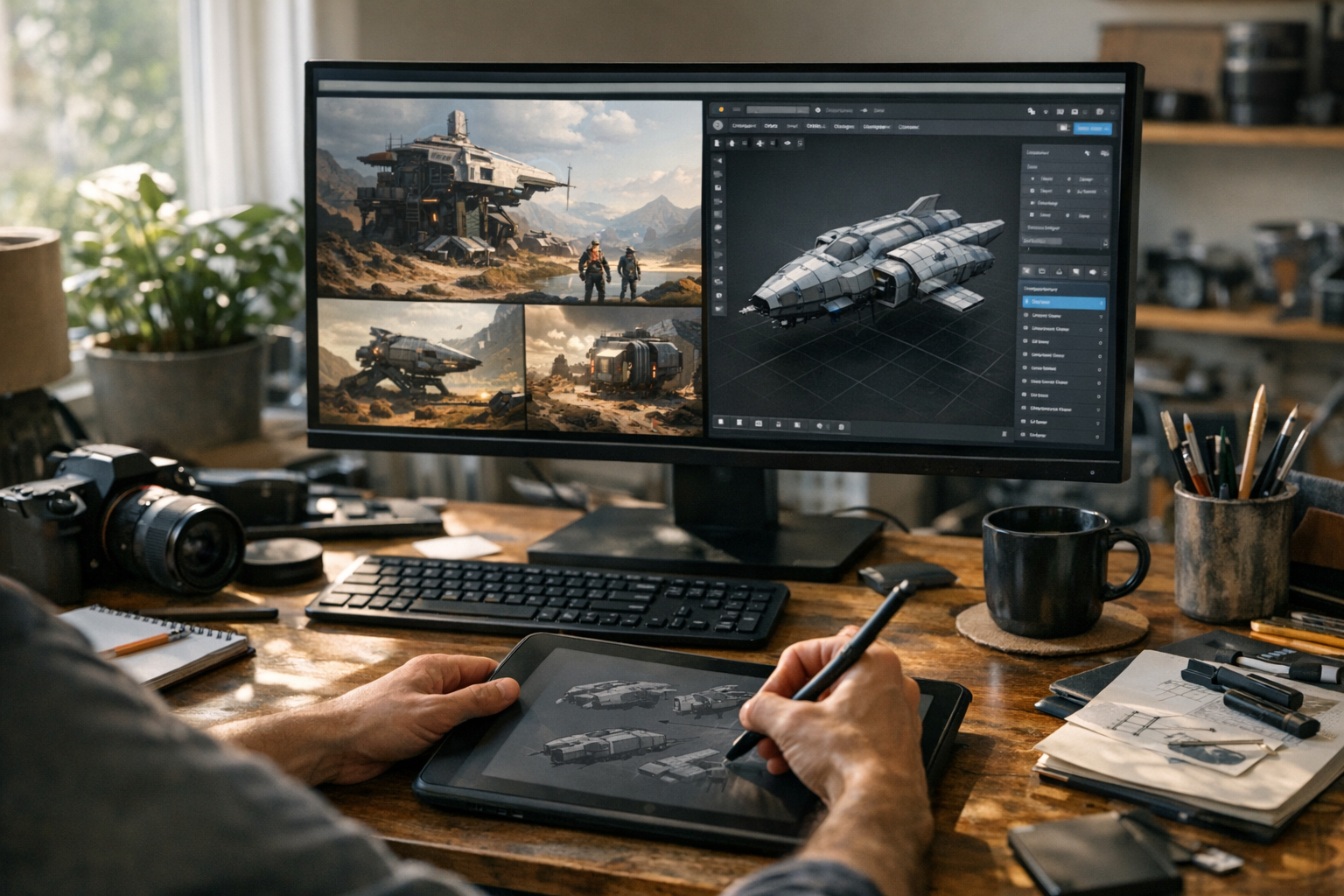
Production workflows are moving away from isolated generation tools. The new standard is end-to-end: generate, refine, validate, and export—all tightly integrated and browser-native. As AI matures, generation quality will improve, but the need for geometry refinement, mesh cleanup, and real asset validation isn’t going away. The winners in this space will be the creators who master the production pipeline, not just the prompt.
Conclusion
To sum up: AI-generated 3D models are a starting point, not a finished product. To make production-ready 3D models, you must refine geometry, validate mesh quality, and export in the right format for your pipeline. Modern browser-based 3D workflows make it easier than ever to prepare 3D models for production, whether for 3D printing, games, or digital rendering. If you want to dig deeper, check out the TimrX Hub for asset management, browser-based print prep, the latest blog guides, or explore the archive for workflow inspiration.
FAQ
- Why aren’t generated models immediately printable?
AI-generated 3D models often have noisy geometry, thin walls, or non-manifold edges, making them unprintable or structurally unsound without further mesh cleanup [1][3]. - What is remeshing?
Remeshing is the process of rebuilding a mesh’s topology to improve consistency, remove artifacts, and prepare for animation or 3D printing. - What makes a mesh production-ready?
A production-ready mesh has clean topology, correct scale, connected geometry, valid normals, and is exported in the right format for its intended use. - Which export format should I use?
Use GLB for game or AR assets, STL for 3D printing, and GLTF for scene interoperability. Match the format to your downstream workflow. - How can browser workflows simplify model preparation?
Browser-native tools let you preview, clean, remesh, and export models without local installs, speeding up iteration and making production-ready 3D models accessible to everyone.
Sources
- [1] Why I think AI generated 3D models are bad for the 3D printing ...
- [2] 10 Common Mistakes When Using Text-to-3D Tools - Sloyd.ai
Comments 0
Be the first to comment on this post.