


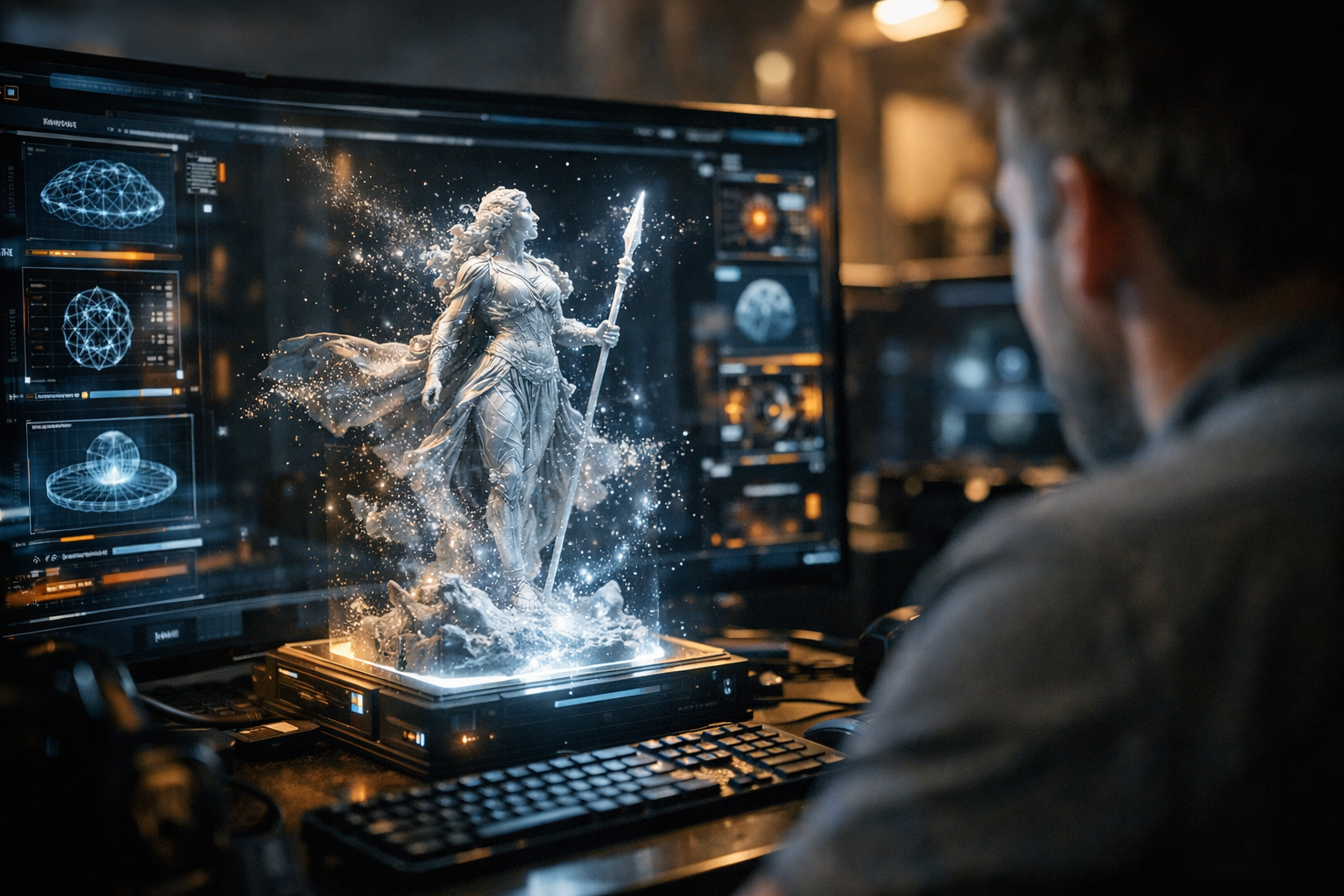
AI 3D generation is changing how we create digital models. Instead of sculpting every detail by hand in Blender or Maya, you can now describe what you want—a rocket, a coffee mug, a robot dog—in plain language. Minutes later, you get a usable 3D asset. So how does this actually work? And how do you, as a creator or developer, use text to 3D AI in your own workflow? Let’s break it down step by step.
How Does Text-to-3D AI Work?
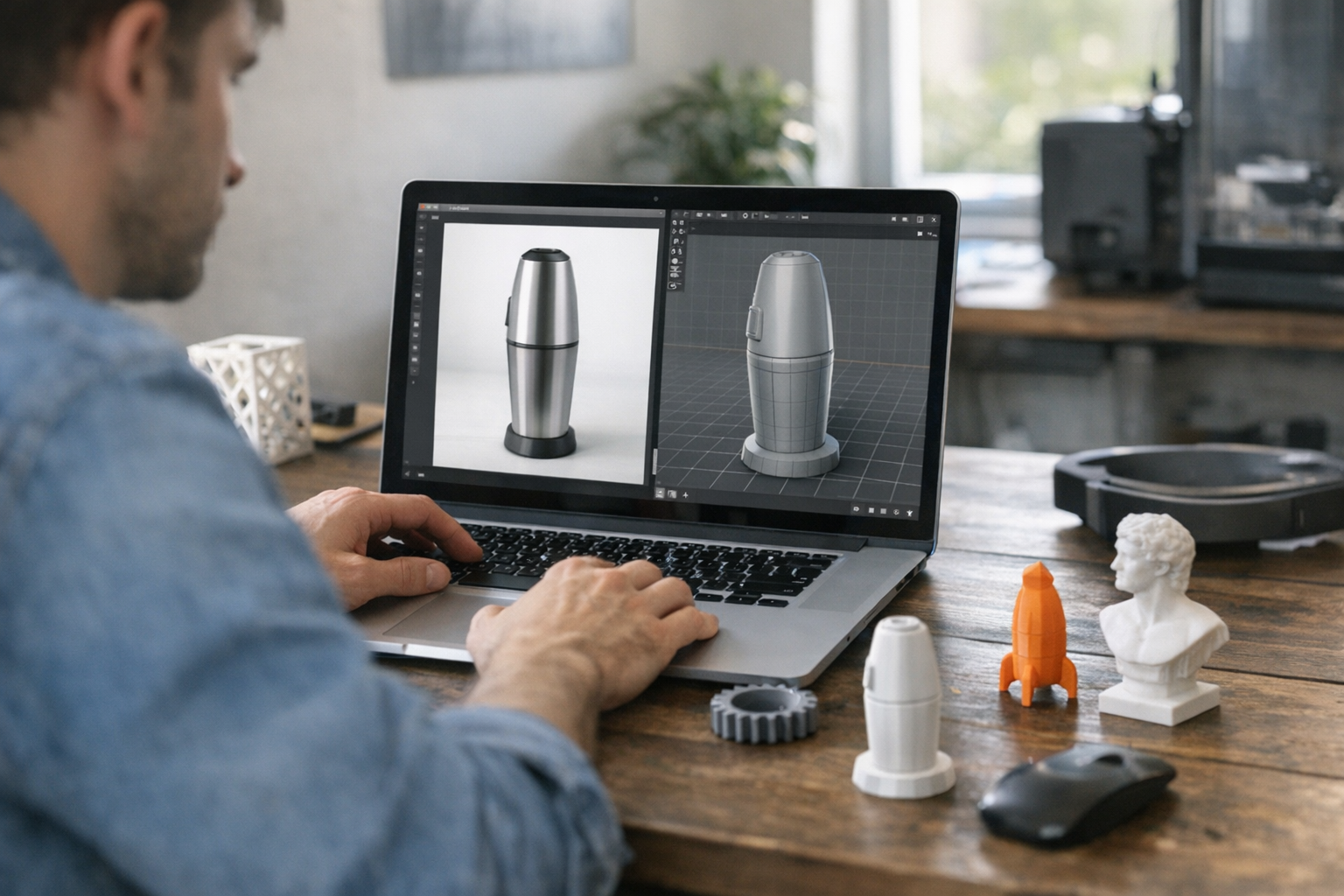
The core idea is surprisingly simple: feed an AI model a text prompt, and it outputs a 3D model file. But under the hood, there’s a lot going on. Most modern tools (like Meshy, Sloyd, and 3D AI Studio) use a mix of natural language processing and generative neural networks trained on massive datasets of 3D objects paired with descriptions [1][2][3]. The model “learns” what a ‘medieval treasure chest’ or ‘futuristic drone’ should look like, based on thousands of examples.
Here’s the flow in practice:
- You enter a prompt (e.g., “steampunk coffee maker with glass tubes”).
- The AI parses your text, extracting key concepts and visual cues.
- A generative model (often a diffusion model or transformer) assembles a 3D mesh, texture, and sometimes UV maps, guided by what it’s learned.
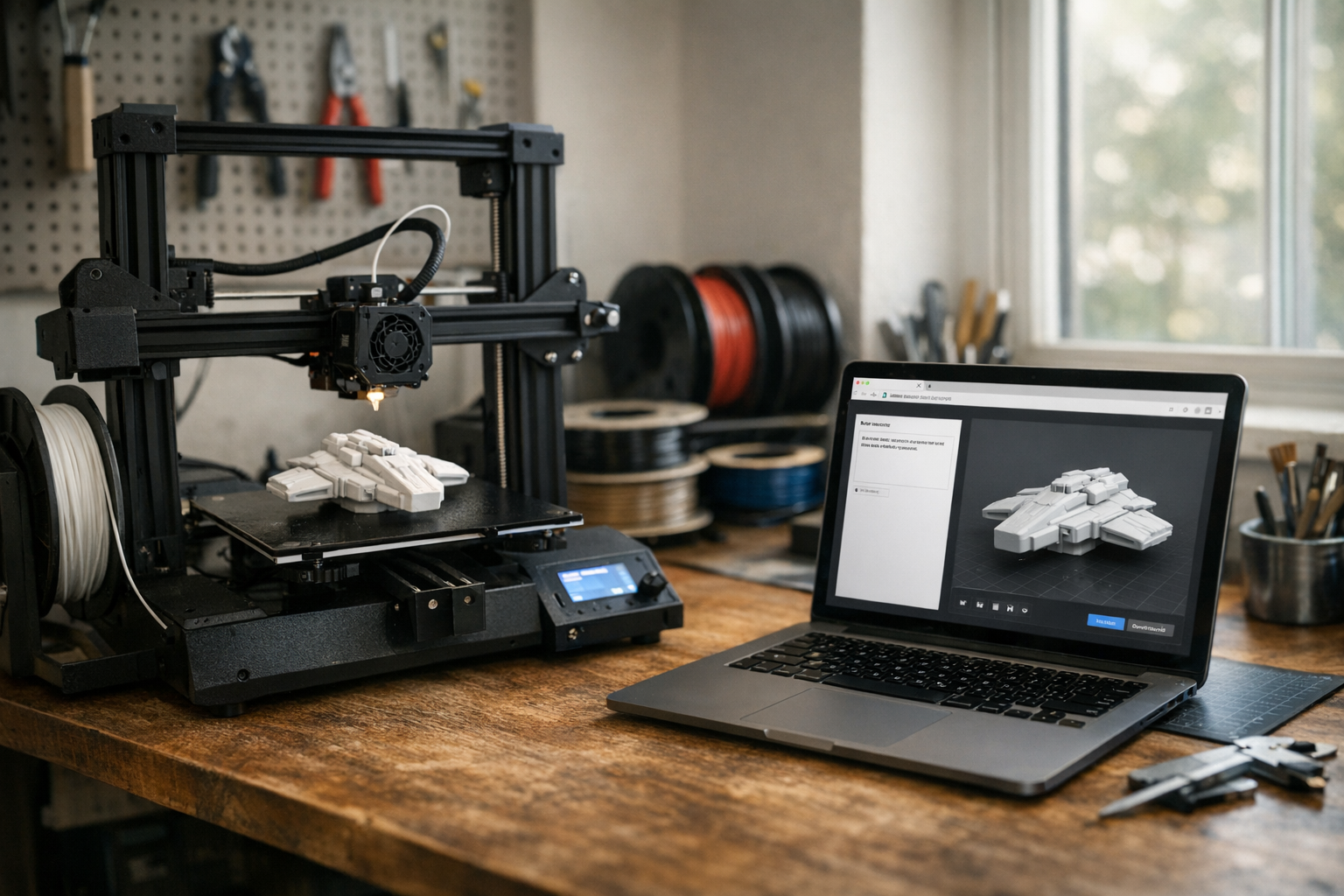
- You get a downloadable 3D file (typically OBJ, GLB, or STL) ready for further editing or printing.
The best tools let you refine results—adjusting size, pose, and level of detail—without ever downloading a single plugin. That’s not just a time-saver. It’s a workflow shift.
Step-by-Step: Generating a 3D Model From Text
Let’s walk through the actual process I use when testing or prototyping with AI generated 3D models. For this example, I’ll use a browser-based flow, since platforms like TimrX, Sloyd, and Meshy all run in the cloud—no heavy workstation required.
- Go to your chosen platform (for TimrX, that’s /hub).
- Choose the AI 3D generator or text-to-3D tool.
- Type your prompt—be as specific as you can ("low-poly racing car with spoilers").
- Click generate. Wait for the preview (usually 30 seconds to 2 minutes).
- Inspect the result. Most platforms let you rotate and zoom the model in-browser.
- Download the 3D file if it fits your needs, or tweak the prompt and try again.
In my experience, shorter prompts give you more generic shapes, while detailed prompts (“vintage camera, leather case, brass details, tripod socket”) lead to richer results. You can also try referencing styles ("in the style of Pixar"), but results vary by model.
Real-World Use Cases for AI Generated 3D Models
Not every 3D asset needs to win an art award. Sometimes you just want a placeholder for prototyping, or a base mesh to sculpt further. Here’s where I see AI 3D generation making the biggest impact:
- Game development: Quickly fill environments with props or characters.
- Product design: Visualize concepts before spending hours on CAD.
- AR/VR prototyping: Populate scenes with interactive objects fast.
- 3D printing: Generate unique models for hobby projects or functional parts (see our deep dive on AI and 3D printing).
- Education: Let students create and modify models for science, art, or engineering.
I’ve used text to 3D AI for everything from tabletop game pieces to quick visualization in pitch decks. The key is knowing when AI gets you close enough—and when you still need a human touch.
Try AI Generation Yourself
Platforms like TimrX allow creators to generate AI images, AI videos, and AI 3D models directly in the browser. You can explore the tools here: https://timrx.live/hub
- TimrX Hub – All creative AI tools in one place.
- 3D print workflows – Go from prompt to printable object.
- Read more tutorials – Learn creative workflows and advanced tips.
- Explore the archive – Browse past AI creations.
If you’re curious about the details of how text-to-3D works technically, check out our full breakdown here.
Tips for Better Text-to-3D Results
Getting the most out of AI 3D generation comes down to the prompt. Here’s what works for me:
- Be specific: Mention style, color, scale, and materials if you care about them.
- Keep it concise: Too many details can confuse the model.
- Iterate: Don’t expect perfection on the first try—refine and re-generate.
- Use references: If the tool allows, upload images or sketches alongside your text.
And remember, not every tool supports every feature. Some are better for stylized models, others for realism [1][2][3][4]. Picking the right platform matters.
Conclusion
AI generated 3D models are here, and they’re reshaping creative workflows. Whether you’re building games, designing products, or just prototyping, text-to-3D AI lets you go from idea to asset in record time. The trick isn’t just using the tool—it’s learning how to speak its language. That’s what separates generic results from something you actually want to use.
FAQ: AI 3D Generation
- What file formats do AI 3D generators export? Most tools support OBJ, GLB, and STL formats for easy import into Blender, Unity, or 3D printing platforms [1][2][3].
- How detailed are AI generated 3D models? Detail varies. Simple prompts yield basic meshes, while more complex prompts can produce textured, detailed assets. Some models still need manual cleanup.
- Can I use AI generated 3D models commercially? Check the platform’s license. Some allow commercial use, others restrict it. Always read the terms before publishing or selling assets.
- Do I need a powerful computer for AI 3D generation? No. Cloud-based tools like TimrX, Sloyd, and Meshy run the heavy computation server-side. A standard laptop or tablet is enough [1][3].
Sources
- [1] AI 3D Model Generator - Create 3D models with Text or images
- [2] Generate 3D Models from Text - 3D AI Studio
- [3] Meshy AI - The #1 AI 3D Model Generator
- [4] 3D AI Studio - Generate 3D Models from Image or Text in Seconds
Comments 0
Be the first to comment on this post.