
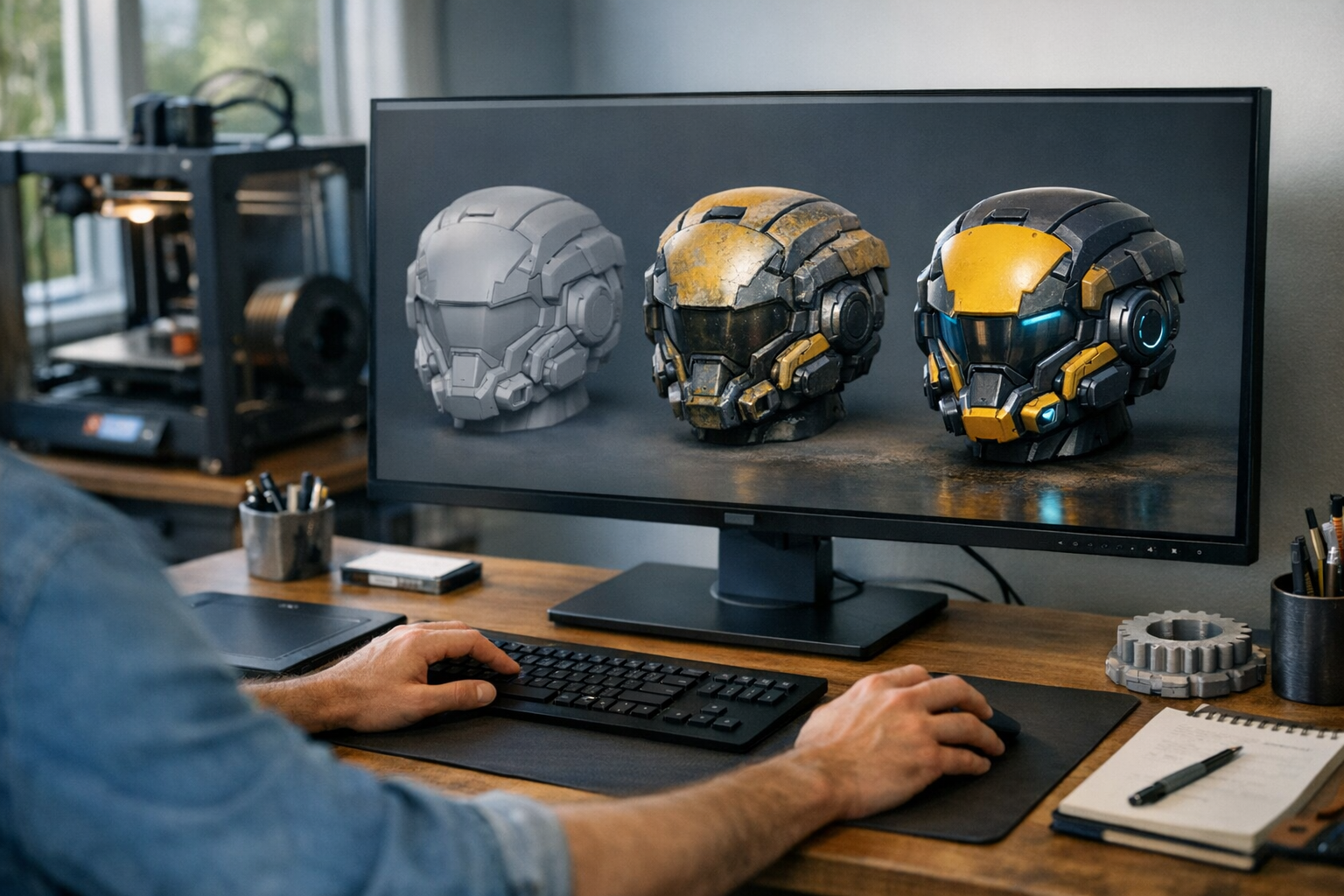

Let’s cut to the chase: if you’re 3D printing, you probably need STL. If you’re sharing 3D models or want to preserve textures and animation, GLB or OBJ will serve you better. But like most things in 3D, the right answer depends on your workflow and what you’re trying to do. I’ve worked with all three formats for years and I’ve seen each one shine—and fail—in different contexts. So here’s my honest, hands-on take on GLB vs STL vs OBJ, with real examples and practical advice for creators, artists, and developers.
Quick answer
For 3D printing, STL is the industry standard—simple, reliable, and almost universally supported by slicers and print services. For web previews, AR/VR, and sharing models with textures, GLB is the best bet. OBJ sits in the middle: it’s flexible, widely supported, but lacks some modern features. If you’re looking to convert between these formats, the TimrX Converter makes it painless.
What is STL?
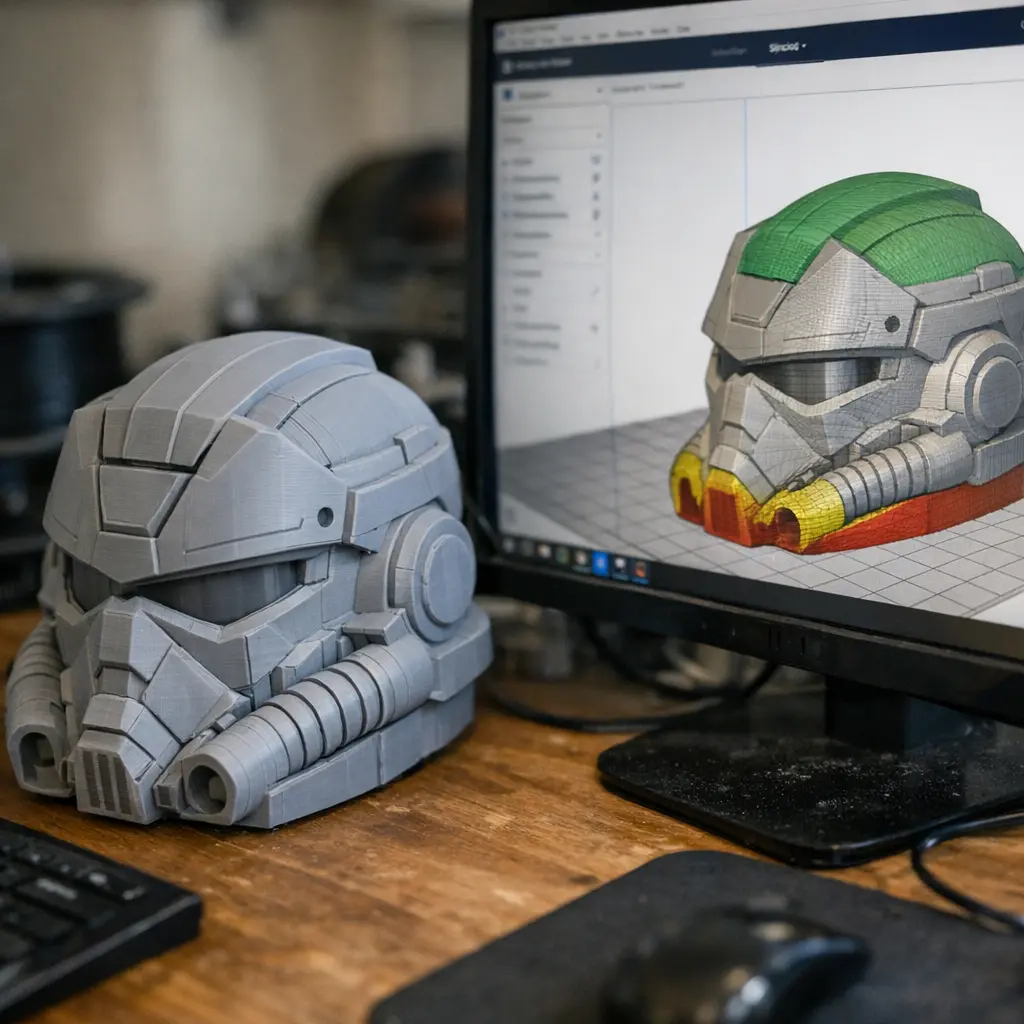
STL stands for Stereolithography. It’s a legacy format (first released in 1987) that stores nothing but the raw surface geometry of a 3D object—no colors, no textures, no animation, not even units. Every triangle is defined by its three vertices and a normal. It’s as barebones as it gets, which is exactly why it’s the go-to for 3D printing. Most slicing tools—think PrusaSlicer, Cura, Bambu Studio—use STL as their default input. It’s easy to generate and dead simple to parse. But don’t expect any bells and whistles: STL can’t describe color, transparency, textures, or any scene data at all.
For more on STL and AI-generated models, check out Text to 3D for STL Files: Prompting Workflow for 3D Printing.
What is OBJ?
OBJ is the Swiss Army knife of 3D file formats. Developed by Wavefront in the ‘90s, it can store geometry, normals, UVs, and (optionally) material references through separate MTL files. OBJ is supported by nearly every 3D tool on the planet: Blender, Maya, 3ds Max, Unity—you name it. It’s also human-readable, so you can actually open an OBJ file in a text editor and see what’s going on. That said, OBJ can’t do everything. It doesn’t support animation, bones, or any kind of scene hierarchy. And its handling of materials is clunky at best—don’t expect your OBJ to look identical in every software.
What is GLB?

GLB is the binary cousin of glTF, which is the modern standard for 3D on the web. GLB packs geometry, textures, materials, animation, even cameras and lighting into a single file. It’s compact and made for fast loading in browsers, AR apps, and game engines. In my experience, GLB is the best option for sharing a 3D asset with all its visual detail intact—no more chasing down missing textures or material files. Tools like Babylon.js, Three.js, and virtually all WebGL/AR viewers have first-class GLB support. The catch? Not every 3D print slicer will accept GLB—yet. If you need to print, you’ll still want to convert to STL.
Want to dig deeper into creator workflows? See Unified Creator Workflows: Building Images, Videos, and 3D Assets in the Browser.
Best format for 3D printing
STL is still the undisputed king for 3D printing. It’s simple, robust, and universally accepted by slicing software and online print services. OBJ is sometimes supported by slicers, and it can be useful if you want to preserve color information for multi-material prints (think Prusa’s MMU or Bambu AMS), but the support is inconsistent. GLB is rarely supported for direct print workflows as of 2024, so you’ll almost always need to convert.
If you’re generating printable models with AI, check the STL output with TimrX PrintCheck or auto-generate STLs using the TimrX STL Generator.
Best format for previews and sharing
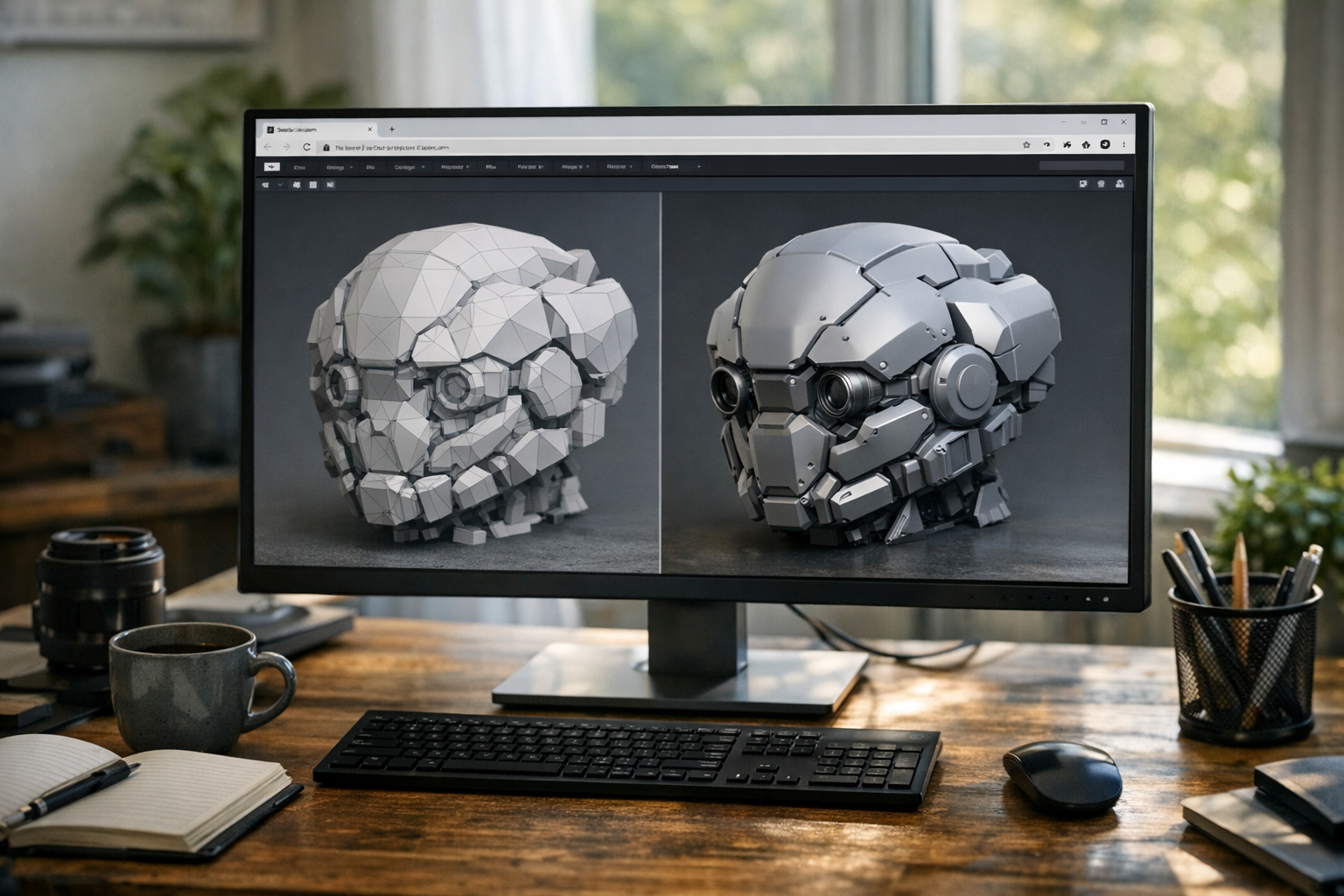
Here’s the thing: GLB is hands-down the best for web previews, AR viewers, and sharing models with textures and animation. Because GLB stores all assets in one binary, you won’t run into missing texture errors when you send a model to a client or collaborator. OBJ can work for simple mesh transfers, but you’ll need to wrangle separate .mtl and texture files. STL is basically useless here—it can’t show color or materials at all. For browser-based previews, GLB is the best approach, period [2][4].
When to convert GLB or OBJ to STL
Convert your GLB or OBJ to STL if you want to 3D print, or if you’re submitting to a print service that only accepts STL. This is a standard step for creators working with AI-generated models, WebGL assets, or 3D scans. Use the TimrX GLB-to-STL Converter or OBJ-to-STL Converter for a one-click solution. If you want a more flexible conversion pipeline, try the TimrX Converter—I’ve found it reliably preserves geometry while stripping out unsupported extras like animation or textures, just as STL demands.
Common conversion problems
Here’s where things get tricky. Converting GLB or OBJ to STL is usually straightforward, but you’ll lose all color, material, and animation data (since STL can’t store it). Occasionally, complex models will have non-manifold geometry or flipped normals that trip up slicers—this is especially true for AI-generated or game assets. Always check your converted STL with a print previewer or repair tool before sending it to a printer. For a deep dive on fixing AI 3D models for printing, see How to Fix AI 3D Models for 3D Printing (Complete Guide).
Try the TimrX converter

If you work with multiple 3D formats, a fast, browser-based converter is a lifesaver. The TimrX Converter handles GLB, OBJ, and STL, and also checks models for 3D printability. You can go from a GLB preview to a watertight STL for printing in under a minute—no desktop software needed. For more on how this fits into a modern creator stack, see The Best Browser-Based AI File Converter for Creators in 2026.
Conclusion: Which 3D file format is best?
If you’re 3D printing, use STL. For web previews and sharing, use GLB. OBJ is a solid middle ground for geometry transfers, but it’s showing its age. Don’t waste time fighting with tools that can’t read your format—convert as needed with something like TimrX, and verify your files before printing. For most creators, a workflow that combines GLB for previews and STL for print is the best approach. And if you’re working with AI-generated models, double-check geometry after conversion—there’s nothing worse than a failed print because of a flipped normal or a hole in the mesh. You’ll find a format that fits, as long as you understand what each one can (and can’t) do.
FAQ
- Q: What’s the best 3D file format for printing? A: STL. It’s universally supported and designed for 3D printing workflows.
- Q: Can you convert GLB to STL online? A: Yes, use the TimrX GLB-to-STL Converter for a fast, browser-based solution.
- Q: Does STL support textures or color? A: No. STL only stores pure geometry. For textures, use GLB or OBJ.
- Q: Which format is best for sharing 3D models with textures? A: GLB. It stores all mesh, texture, and material data in a single file.
- Q: What’s the main difference between OBJ and STL? A: OBJ can store color and texture references (via MTL), STL cannot. STL is simpler and meant for printing.
Sources
- [1] A Comprehensive Guide of 3D Model Formats (2025) - VividWorks
- [2] What are and what is the difference between glb, fbx, and obj. : r/godot
- [3] STL vs. OBJ vs. GLB vs. OpenSCAD: Choosing the Right 3D File ...
No validation references for this post.

Comments 0
Be the first to comment on this post.