
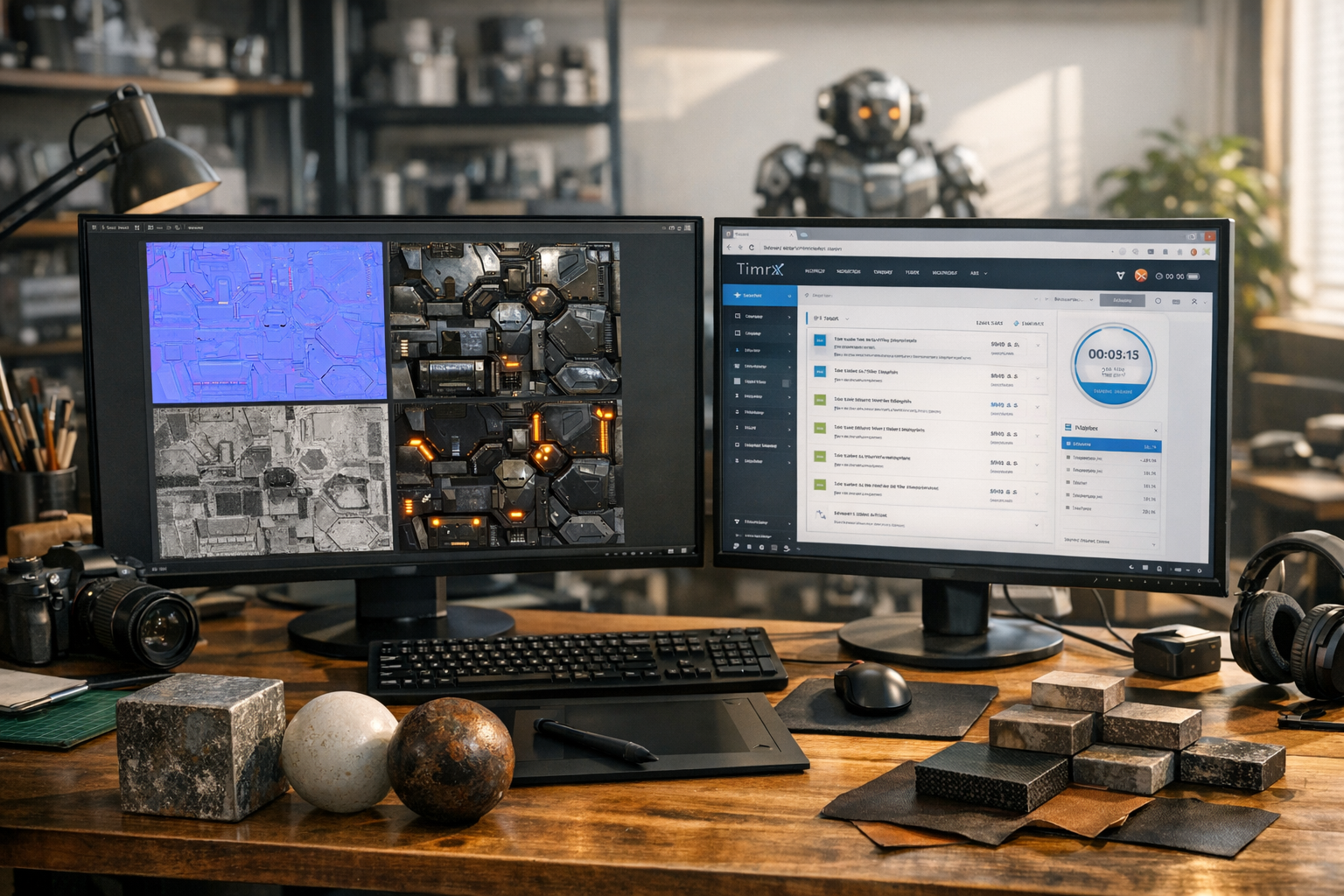

AI-generated textures aren't just hype—if you're building 3D models for games, product design, or 3D printing, they're quickly becoming the new baseline. I’ve spent months dissecting the workflows, testing AI material generators, and putting the TimrX pipeline through its paces. Here’s everything you need to know about creating, mapping, and applying AI textures in real production—plus the authoritative content cluster to turn you (or your studio) into PBR pros.
Why AI-Generated Textures Are Changing 3D Production
Traditional texturing? Painfully slow. You’d spend hours in Substance Painter or Photoshop, tweaking layers, painting seams, making endless adjustments to get a single material looking right on your mesh. AI texturing tools, especially those built into platforms like TimrX (AI Tools), flip that script. You can generate photorealistic, tileable, PBR-ready materials in seconds from a prompt. Want a scorched metal, mossy stone, or iridescent sci-fi plastic? Just describe it. The AI spits out seamless albedo, roughness, normal, and displacement maps—ready for rendering or print workflows.
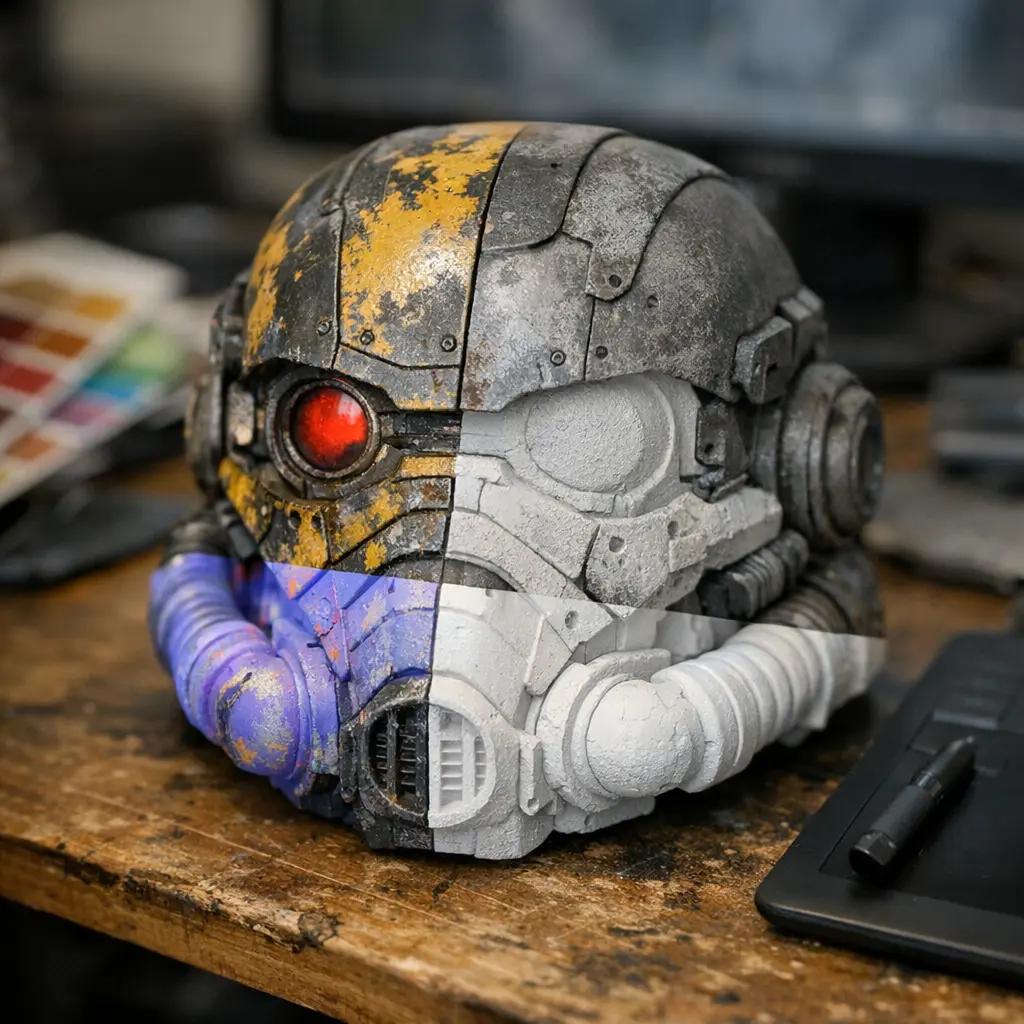
The TimrX AI Texturing Pipeline: From Prompt to 3D Print
The TimrX workflow is browser-based, fast, and doesn’t require you to install or license heavyweight 3D software. Here's the thing: you start with either a text prompt or a reference image. TimrX’s AI Image Generator and AI 3D Generator let you specify what you want—"weathered copper tile," "stylized wood plank," you name it. The system outputs high-res texture sets (albedo, roughness, normal, displacement) that are instantly downloadable and PBR-ready. If you’re prepping for 3D printing, you can even use TimrX 3D Print for mesh fixing and texture baking—that’s a huge time saver compared to typical Substance workflows.
For developers or technical artists, you can integrate TimrX outputs into Unity, Unreal, Blender, or proprietary engines. The texture maps are compatible with all major PBR pipelines. And if you're curious about no-code 3D creation, check out No-Blender 3D Modeling for a deep-dive into making models with nothing but AI.
AI-Generated Textures for 3D Models — Complete Guide
This is the pillar piece. If you’re after a full step-by-step breakdown, from prompt engineering to applying AI textures in a professional pipeline, read the AI-Generated Textures for 3D Models — Complete Guide. It covers:
- Prompting for specific materials and effects
- Best practices for seamless, tileable output
- Exporting and importing texture maps (albedo, normal, roughness, displacement)
- Integrating with Unity, Unreal, and Blender
- Special considerations for 3D printing workflows
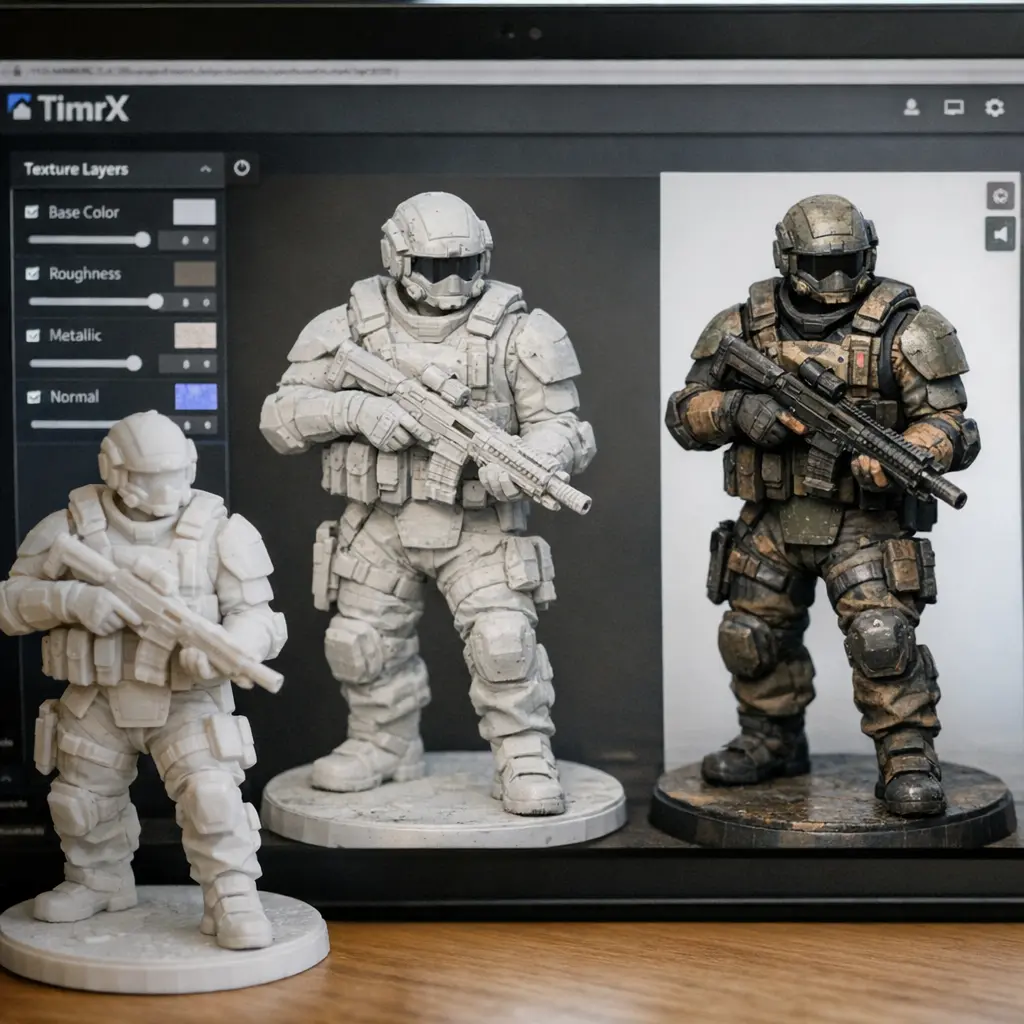
Text-to-Texture AI: How to Create Realistic Materials from Prompts
If you’re coming from the AI image world, you already get the power of prompt engineering. With text-to-texture AI, the same principle applies—specificity is everything. Describe the exact material, finish, imperfections, and scale. For example: “aged brass, fingerprint smudges, subtle scratches, 10cm tile.” TimrX parses this and generates a full PBR material in seconds. The more context you give, the fewer post edits you’ll need. For a deep dive into prompt-crafting for materials, see How to Write Better AI Image Prompts.
TimrX’s AI material generator also allows for seamless generation and tiling, so you can use these textures on large surfaces without visible repeats or seams. This is key for games and archviz projects where immersion depends on texture quality. For more on prompt-based workflows, check out the supporting article: AI-Generated Textures for 3D Models — Complete Guide.
AI Texture Maps Explained: Albedo, Roughness, Normal & Displacement
Let’s get technical. Understanding PBR maps is non-negotiable if you want your models to hold up in a pro pipeline. Here’s a quick breakdown:
- Albedo: Color data, no lighting info—think of it as the base paint.
- Roughness: Dictates surface reflectivity. Matte or polished? This map decides.
- Normal: Fakes small surface detail and bumps without heavy geometry.
- Displacement: Actually moves the mesh surface for real geometry detail.
TimrX’s AI pipeline generates all these in one go. You can preview, tweak, and export individual maps for use in any PBR workflow. This is especially useful if you’re coming from a non-technical background—no need to hand-paint these maps or guess at their purpose. For a hands-on look at how these fit into a 3D print pipeline, see AI 3D Printing Models: From Text Prompt to STL File.
AI Textures vs Substance Painter: Workflow, Quality, and Cost
This is the question every 3D artist asks: does AI texturing actually compete with Substance Painter or procedural node setups? Short answer: yes, for most standard use cases. If you need hyper-specific hero assets for a AAA game, you’ll still want manual touchups. But for background assets, rapid prototyping, or indie games, AI-generated textures are faster (minutes vs. hours), massively cheaper (no subscription required), and often 90% as good out-of-the-box. The TimrX workflow also skips the hassle of license management, hardware installations, and compatibility headaches—everything runs in your browser.
For a real-world comparison, the supporting piece AI-Generated Textures for 3D Models — Complete Guide benchmarks both approaches on speed, output quality, and cost, with sample assets provided. If you’re just getting started, AI is the best approach. If you’re a pro, it’s an unbeatable base for rapid iteration.
Using AI-Generated Textures for Game Assets, Product Design & 3D Printing
AI textures aren’t just for digital renders. Game developers can drop TimrX-generated PBR sets directly into Unity or Unreal: no manual tweaking, no visible seams. Product designers use AI materials for photoreal mockups, rapid prototyping, and even client-facing renders. And when it comes to 3D printing, TimrX bridges the gap: you can bake color and normal information directly onto meshes for full-color prints, or use roughness/displacement maps to simulate real material properties. For a technical guide to print prep, see How to Fix AI 3D Models for 3D Printing (Complete Guide).
For studios juggling both digital and physical assets, this is a game-changer. You keep a single source of truth for materials across all platforms. Want more on this workflow? The supporting article dives into cross-domain applications and printable model prep with TimrX.
Seamless AI Textures: How to Generate Tileable Materials for 3D Models
There’s nothing worse than a visible seam on a tiled surface. TimrX’s AI texture tools are built to handle seamless, tileable output by default. But here’s what matters: prompt for scale and repeat as you would for any procedural system. For instance, specify “tileable marble, 50cm square, no visible edges.” The pipeline ensures all PBR maps align perfectly, so you can repeat textures on massive 3D environments or product surfaces without artifacts.
Watch out for common mistakes: vague prompts, low-resolution output, or mismatched map dimensions. TimrX’s preview tools help you spot these before download. For a practical tutorial on generating seamless AI textures and troubleshooting tiling issues, see the dedicated supporting article in this cluster, as well as From AI Image to 3D Model: Inside the TimrX Creative Pipeline.
How to Build Authority and Improve Your Workflow with TimrX
Here’s what I’ve learned: owning your material pipeline is the key to standing out as a 3D artist or studio. TimrX gives you a unified hub (TimrX Hub) for AI image, video, and 3D workflows, all in the browser. The internal linking architecture—between this pillar and supporting articles, plus core pages like /blogs, /archive, and /3dprint—means you can always find the latest techniques, troubleshooting, and real-world use cases across the TimrX ecosystem.
If you’re serious about scaling your creative output, reduce friction, and future-proof your workflow, integrating AI-generated textures is the best move you can make right now.
Conclusion: The Future of AI-Generated Textures Is Already Here
The bottom line: AI-generated textures for 3D models aren’t just a shortcut—they’re the new standard for rapid, scalable, and high-quality asset production. Whether you’re a solo creator, a game studio, or a product designer, TimrX’s pipeline lets you move from text prompt to PBR-ready asset to physical print faster than ever. If you want to dig deeper, every supporting article in this cluster is a technical deep-dive. Start with the Complete Guide, then branch out. Your workflow will never be the same.
FAQ: AI-Generated Textures for 3D Models & TimrX Workflows
- How do I generate seamless AI textures with TimrX? Use the AI Image or 3D Generator, specify 'tileable' in your prompt, and preview the result before download.
- Can I use TimrX texture maps in Blender or Unity? Yes, all maps are PBR-standard and import directly into major 3D tools and engines.
- Does TimrX support full-color 3D printing workflows? Yes, you can bake texture maps onto your mesh for color 3D printing. See the 3D print guide for details.
- Are AI-generated textures as good as Substance Painter? For most cases, yes. For hero assets, you may want to combine AI output with manual edits.
- Where can I find more TimrX tutorials? Browse our blog archive or explore specific workflows on the TimrX Hub.
Sources
- [1] TimrX AI Tools — Image, Video & 3D Generation
- [2] TimrX — AI Creative Platform for 3D, Video & Image Generation
Comments 0
Be the first to comment on this post.