
AI-Generated Textures for 3D Models — Complete Guide
Textures are the secret sauce of 3D modeling. They’re what make a model look like rusty steel, worn denim, polished marble, or anything else you can imagine. But here’s the thing: hand-creating high-quality textures is tedious, slow, and—let’s be honest—not always fun. That’s where AI-generated textures step in, giving creators, developers, and 3D artists a way to describe what they want and get photorealistic, tileable, and PBR-ready texture sets in seconds. Modern tools like TimrX are leading this shift, letting you generate, refine, and apply AI textures for 3D models directly in the browser. In this guide, I’ll walk you through how AI texture generation works, how you can use it, and where it fits in the modern 3D workflow.
What Are Textures in 3D Modeling?
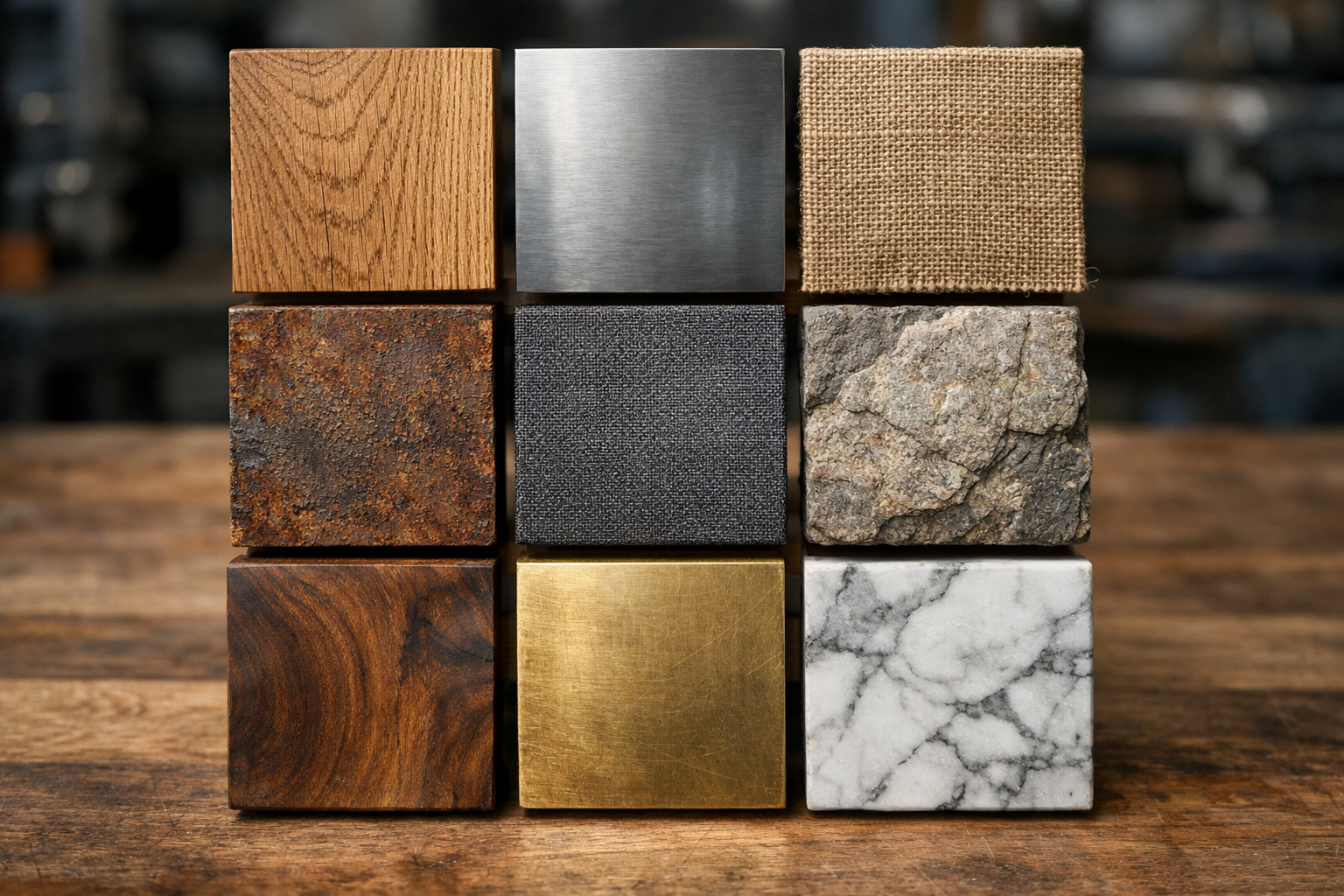
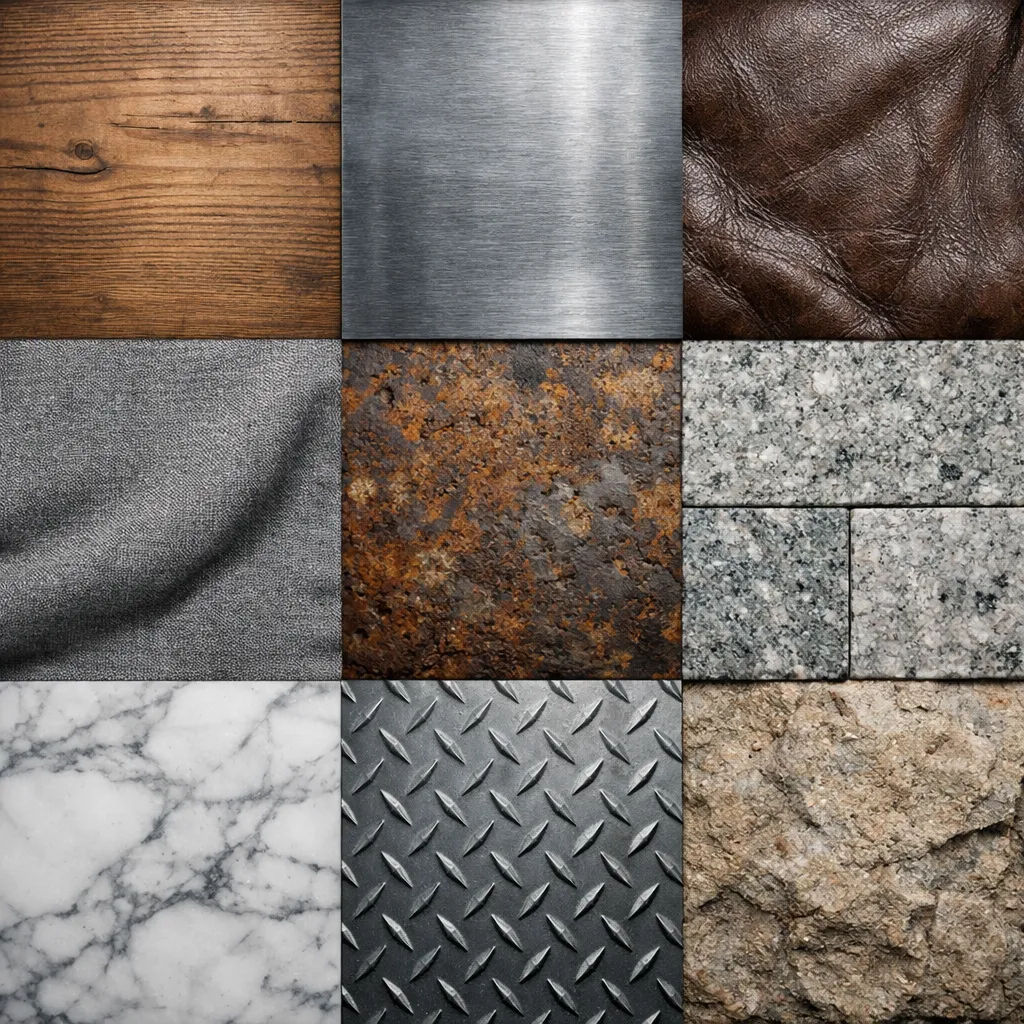
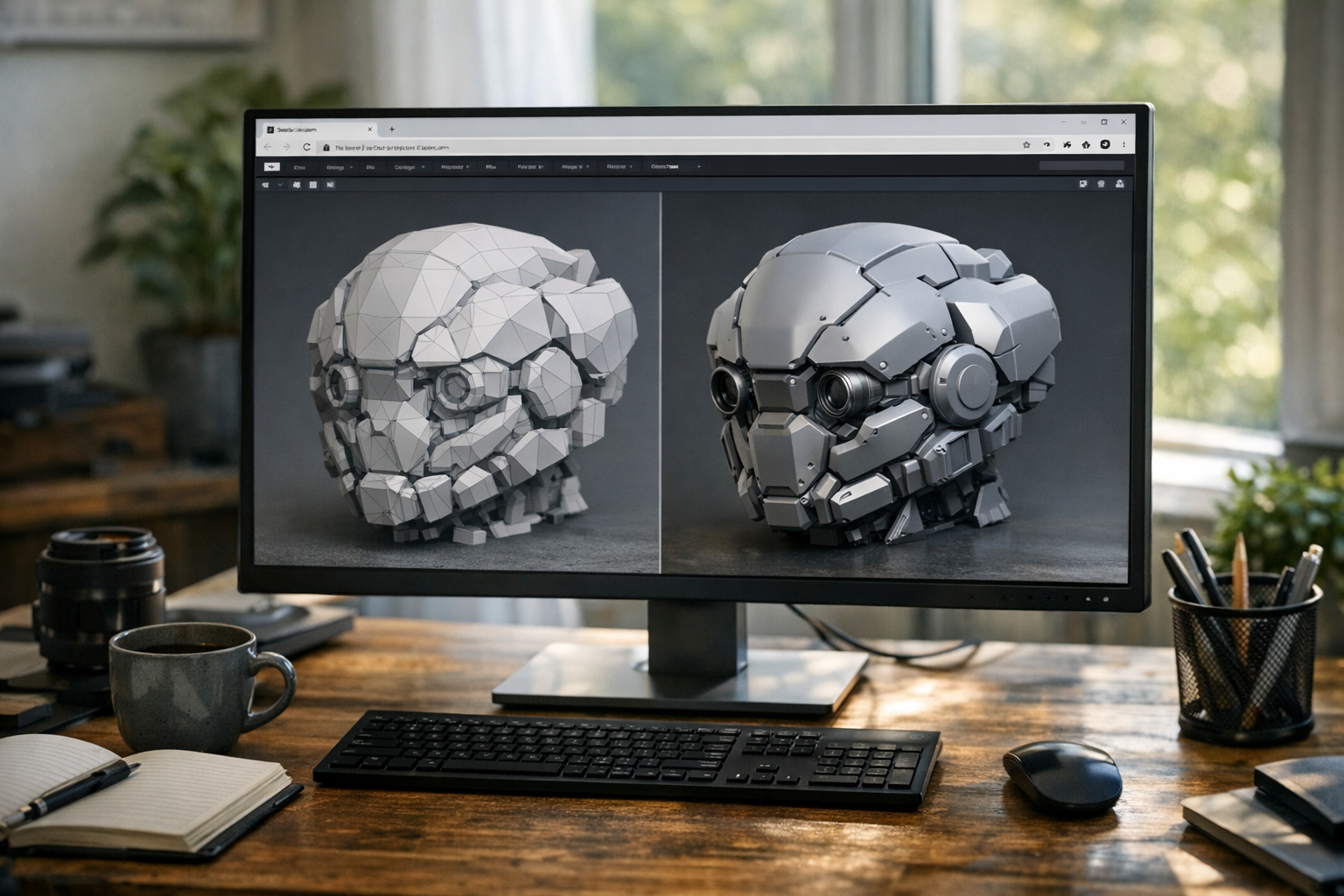
A texture, in 3D modeling, is simply a 2D image mapped onto a 3D surface. When paired with materials, textures define how light interacts with objects—making something shiny, dull, bumpy, or matte. If you’ve ever opened a 3D model and seen a flat, grey blob, that’s a mesh without textures. Add a set of well-made textures, and suddenly that blob looks like battered leather or brushed aluminum.
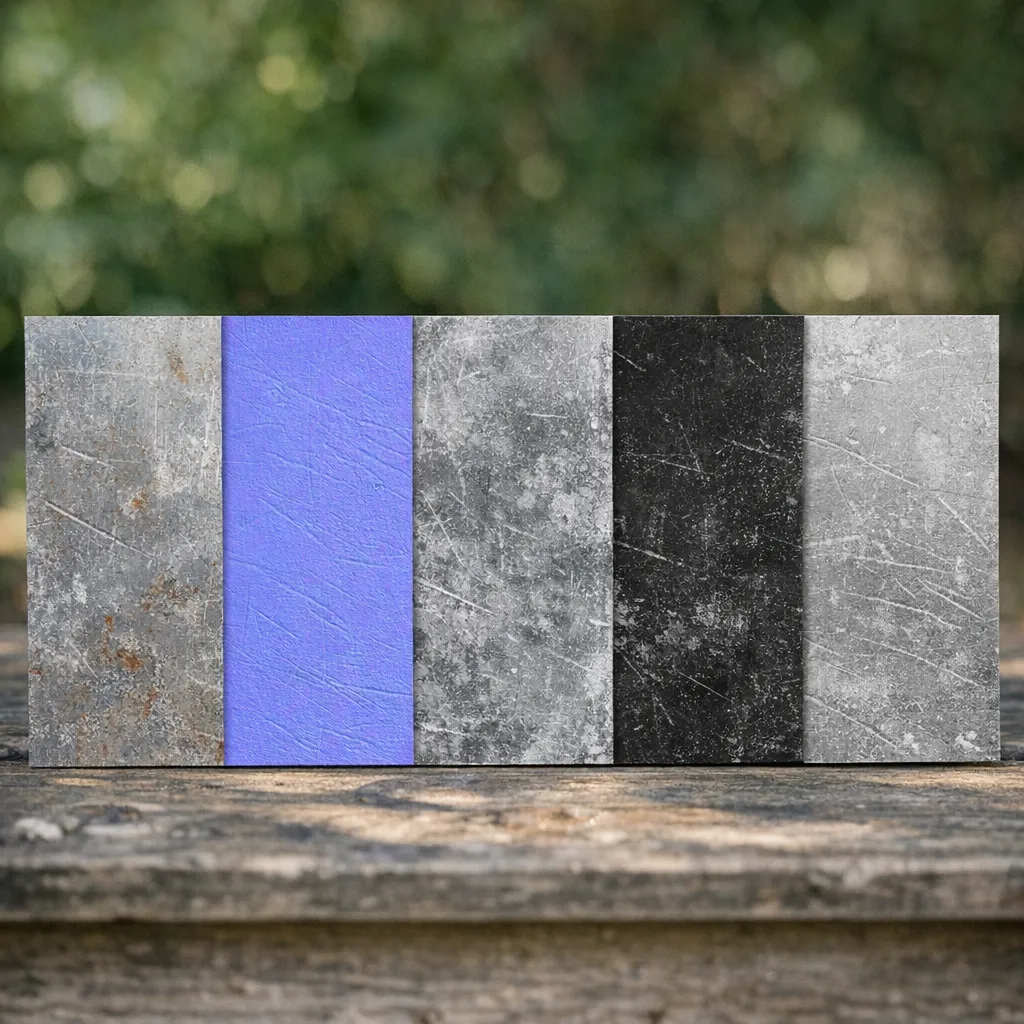
Most modern 3D engines and workflows rely on Physically Based Rendering (PBR). This means textures aren’t just color images; they’re a set of maps (albedo, normal, roughness, etc.) that work together to mimic real-world material physics. The result is photorealism, even in real-time engines.
Common Texture Maps
- Albedo (Base Color): The main color of the material, without lighting or shadow.
- Normal Map: Encodes surface bumps and dents for detailed lighting effects.
- Roughness Map: Controls how shiny or matte the surface appears.
- Metallic Map: Tells the renderer which parts are metal and which aren’t.
- Height / Displacement Map: For actual surface relief, used in engines that support it.
How AI Generates Textures
AI generated textures are made using generative models—think diffusion models or GANs—that turn text prompts or reference images into seamless, high-res materials. With text-to-texture AI, you type a prompt like “old painted wood, chipped, seamless, PBR, 4K” and the model interprets it, generating a realistic texture tile. With image-to-texture AI, you upload an image (a photo, a scan, even a rough sketch) and the model extracts or enhances the relevant surface characteristics to create texture maps. Some systems also support pattern generation and tiling—making sure edges match so textures can repeat without visible seams. The best models are trained on massive datasets of real-world materials and PBR maps, allowing them to synthesize new, plausible textures in nearly any style or category [1][3].
Seamless generation matters. AI models use techniques like circular padding or smart edge blending to ensure that a texture repeats smoothly on 3D surfaces, avoiding ugly tiling artifacts.
Prompting for Texture Generation
Prompt engineering isn’t just for images or text—it's critical for texture generation AI, too. If you want a specific material, you need to describe it clearly and with the right keywords. For example, specify the surface type (wood, stone, fabric), add adjectives for realism (worn, aged, glossy, matte), and always state if you want seamless or PBR output.
- “seamless worn leather texture, high detail, PBR, realistic lighting, 4K”
- “tileable sci-fi metal panel, scratched, PBR, albedo + normal + roughness”
- “fabric weave, photorealistic, PBR, seamless, 2K”
To control resolution and detail, include those terms directly in your prompt. Some AI tools, like the TimrX AI Image Generator, let you specify output size and map types directly.
If you want to go deeper on prompt crafting, check out How to Write Better AI Image Prompts — Complete Guide.
From AI Image to PBR Texture Set
Most AI tools output a single color texture by default. For true PBR workflow, you need a full texture set: albedo, normal, roughness, sometimes metallic or ambient occlusion. Some platforms let you generate these maps together from the start. Others require you to generate a base image and then derive extra maps using secondary AI models or traditional tools (like Materialize, JSplacement, or Substance Sampler).
- Generate base (albedo) texture via text/image prompt.
- Use AI or algorithmic tools to generate normal, roughness, and other maps from the base.
- Export texture set as PNG/TGA for use in your 3D workflow.
TimrX’s AI Image Generator and AI 3D Generator streamline this, letting you go from prompt or image to PBR-ready textures and 3D models directly in the browser.
Applying AI Textures to 3D Models
Once you have a PBR texture set, the next step is mapping it onto a mesh. This is where UV mapping comes in—a 2D unwrapping of the 3D surface, so the textures align correctly. Most 3D tools (Blender, Maya, Unity, Unreal) let you assign texture maps to material slots. For real-time rendering (games, XR), PBR maps are loaded into the engine’s material system. For offline rendering (V-Ray, Arnold), the workflow is similar but may support higher-res or more complex maps.
If you’re prepping for 3D printing, you might convert texture color data to vertex colors or bake details into the mesh itself. For deeper workflow tips, see TimrX 3D Print and How AI-Generated Models Are Transforming 3D Printing: A Technical Guide.
Using AI Textures in TimrX
TimrX is designed for AI workflows for 3D modeling, including texture generation AI. You can generate PBR textures from prompts or images, apply them to 3D models, and preview everything in-browser—no installs, no setup. The TimrX Hub gives you a unified dashboard for images, 3D, and printing. Use AI Image Generator for textures, AI 3D Generator for models, and 3D Print for export. For examples and tutorials, browse our educational content and the archive of related posts.
AI Texture Workflows
Let’s get concrete. Here are three practical workflows for using AI textures for 3D models in real projects:
Workflow 1 — Game Asset Creation
- Write a prompt describing the desired material (e.g. "tileable sci-fi metal panel, PBR, 2K").
- Generate the texture using TimrX or another tool.
- Apply the texture set to your 3D mesh in your engine of choice (Unity, Unreal, Godot).
Workflow 2 — 3D Printing Preparation
- Generate or select a texture (e.g. patterned grip for a tool handle).
- Convert the texture to a height/displacement map.
- Apply the displacement to the mesh, baking in the detail.
- Export for printing via TimrX 3D Print or your slicer.
Workflow 3 — Concept to Render
- Prompt TimrX to generate a set of realistic PBR textures for your concept.
- Generate or import a 3D model and apply the textures.
- Render in your favorite engine or directly in the browser for fast iteration.
Advantages of AI-Generated Textures
- Speed: Go from idea to usable texture in seconds, not hours.
- Cost Reduction: No need to license stock textures or hire specialists for every asset.
- Infinite Variations: Change prompts or seeds for endless unique results.
- Rapid Iteration: Tweak, regenerate, and apply textures without leaving the browser.
Limitations and Challenges
- Inconsistency: AI outputs can vary—sometimes you need to regenerate or fine-tune.
- Lack of Physical Accuracy: Not all AI textures are physically plausible; manual tweaks may be needed.
- Cleanup Required: Some textures need post-processing to fix seams or generate missing maps.
Future of AI Texturing
Looking ahead, fully automated material generation is the next frontier. Imagine describing a scene and having every surface textured, mapped, and ready for rendering—no manual setup. Real-time AI texture generation is already being tested in some engines. As these tools integrate deeper into 3D pipelines, I expect AI 3D texturing to become a core creative skill for anyone working in games, film, XR, or 3D printing [3].
Conclusion
AI generated textures are changing what’s possible in 3D modeling. Whether you’re building game assets, prepping models for 3D printing, or iterating on visual concepts, AI textures for 3D models offer speed, flexibility, and quality that just wasn’t possible a few years ago. Platforms like TimrX bring these workflows into a single, browser-based pipeline—prompt to image, image to 3D, 3D to print. If you want to level up your creative toolkit, learning how to prompt, generate, and apply AI textures is no longer optional—it’s essential. For more on AI workflows for 3D modeling, check out our educational posts or browse the archive for real project breakdowns.
FAQ
- What are AI-generated textures?
They are textures for 3D models created using generative AI. You provide a text prompt or image, and the AI outputs a seamless, high-res material texture or full PBR map set. - Can AI create PBR texture maps?
Yes, many AI tools can generate not just color textures but full PBR sets—albedo, normal, roughness, metallic, and height maps—for use in real-time or offline rendering. - How do you apply textures to 3D models?
You map the textures onto your 3D mesh using UV coordinates, then assign each map (albedo, normal, roughness) in your 3D software’s material editor. - What is a normal map?
A normal map is a texture that encodes surface bumps and dents, adding lighting detail to a flat surface without changing the mesh geometry. - Are AI textures good for games?
Yes. AI textures for 3D models can be high-res, seamless, and PBR-ready, making them suitable for use in game engines, especially when rapid iteration or unique assets are needed.
Sources
- [1] Complete Guide to Generative AI - by yugal-nandurkar - Medium
- [2] What is AI Generated Content? Complete 2026 Guide & Examples
- [3] Creating AI-Enhanced Technical Documentation: A Step ... - LinkedIn
Comments 0
Be the first to comment on this post.